You remember taking the photograph. Someone was laughing, the light was right, and you are sure you saved it. Finding it means opening folders called “Phone backup,” “Old phone,” and, inevitably, “Old phone final.”
A useful photo organizer lets you look for that picture in several ways. Faces, dates, locations and tags can all help. The right choice depends on whether your collection lives on a laptop, a home server or a gallery shared with other people.
This shortlist covers three different approaches. Tonfotos leads for a family archive where finding people matters most, followed by PhotoPrism for a private server library and Piwigo for shared online collections. These are recommendations by use case, rather than results from a speed or recognition-accuracy benchmark.
1. Tonfotos: A strong choice for finding people in family photos
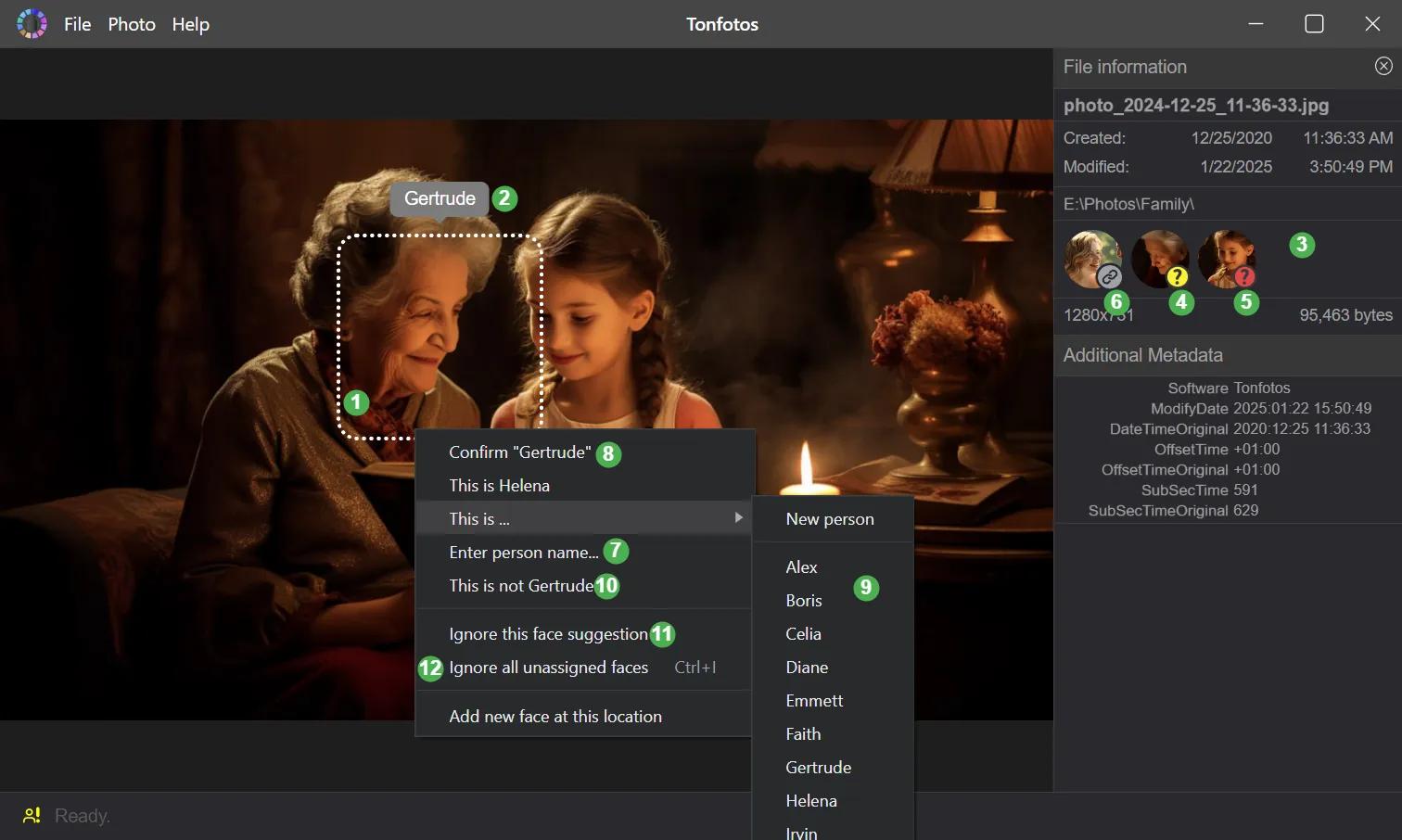
Tonfotos makes particular sense when the question is “Where are the pictures of this person?” rather than “Which folder did I put them in?” Its face recognition and photo face search features help turn a scattered collection into something you can browse by the people who appear in it.
The process starts when you enable face recognition for a library location. Tonfotos detects faces, and you give a familiar face a name. It then suggests other photographs that may show the same person. You confirm the good matches and reject mistakes. Over time, that gives you a personal album without having to remember every birthday, holiday or camera involved.
It is worth understanding what this search does. Photo face search here means finding someone within your own photo library. It is not an internet search for an unknown person’s identity.
According to its face recognition documentation, the AI runs on your computer; photos are not sent to external AI providers for that processing. The documentation also makes clear that confirmation matters. Blurred faces and awkward angles can affect suggestions, so leave time to review them.
Tonfotos also brings together photos stored on a computer, external drives and a NAS. Albums, tags, date browsing, maps for geotagged pictures and duplicate management give you other routes through the collection. It is available for Windows, macOS and Linux.
- Key advantages: local face recognition, browsing photos by person, and support for archives spread across several storage locations.
- Keep in mind: the free edition limits the number of people you can name. Paid perpetual licences remove that restriction.
For a family slideshow, start by naming a few people in clear portraits. Review the resulting suggestions before adding hundreds of names. A few accurately labelled albums will serve you better than hundreds of uncertain matches.
2. PhotoPrism: For people who want to run their own photo library
PhotoPrism is worth considering if you already use a home server or want a browser-based library under your control. Its self-hosted edition is commonly deployed with Docker, and you then browse the collection through a web interface.
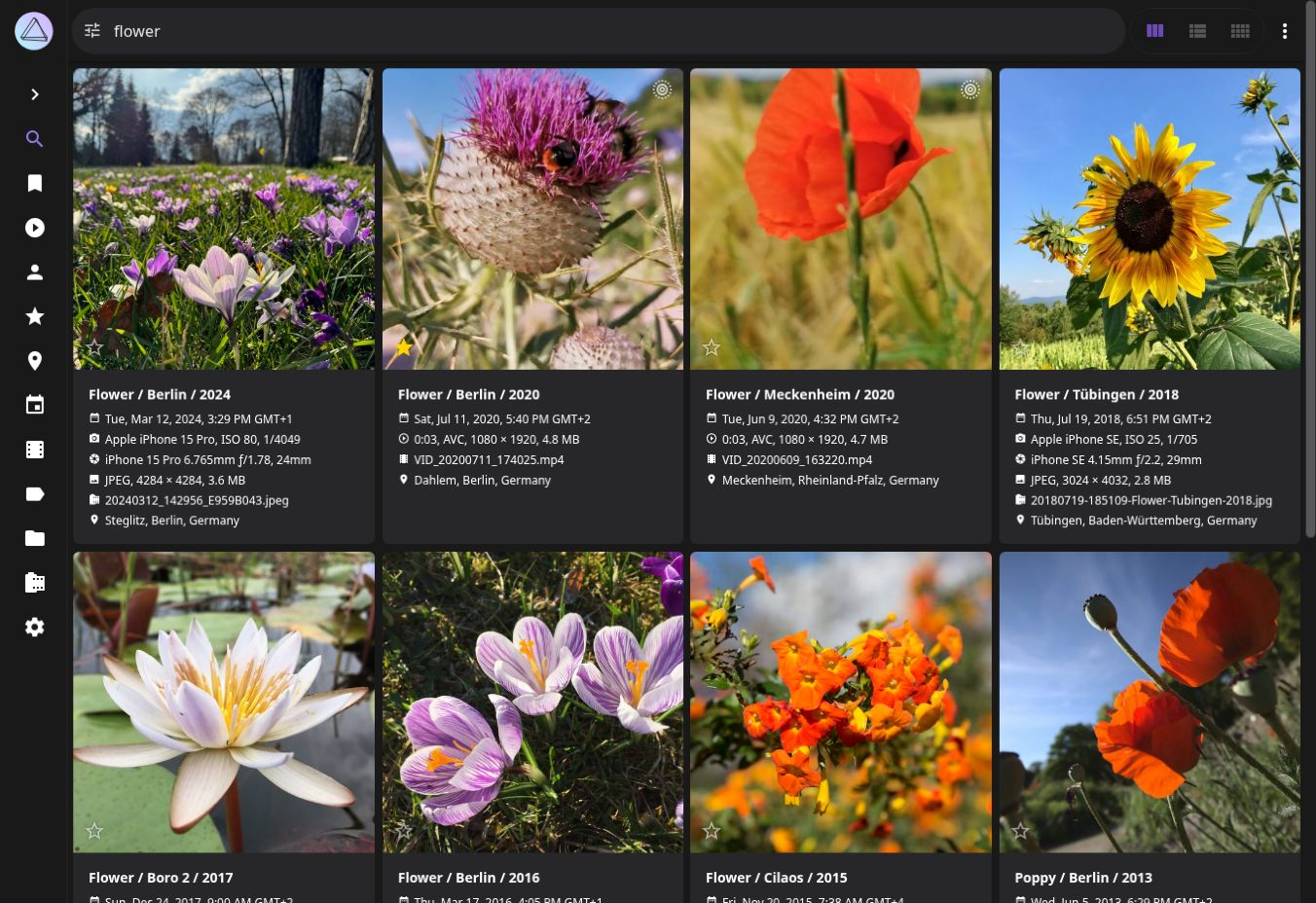
Search is a central attraction. PhotoPrism can combine filters for properties such as labels, locations and image characteristics. It also extracts camera and exposure information, which helps when you want to find a photograph by the equipment or circumstances behind it.
In the public demo, a search for flowers produces a visual set of results with dates, camera details and locations beneath the thumbnails. That layout gives you useful clues without opening each file individually. The accompanying screenshot was captured directly from that demo.
Face recognition adds another route into the archive. The People view groups similar faces so you can attach names and find photographs of family or friends. Albums and sharing links help turn a search result into a collection someone else can browse.
- Key advantages: detailed search, face grouping and access through a browser.
- Keep in mind: self-hosting brings installation, updates, storage and backup responsibilities. The free edition still needs storage, hardware and time to maintain it.
Choose it because you want to maintain that kind of library. If setting up a server feels like a chore before you have even opened your first photograph, a desktop organizer may be a better fit.
3. Piwigo: For albums that other people need to browse
Piwigo is a practical option when organizing and sharing are part of the same job. A photography club, small editorial team or family history project might need a central collection that several people can navigate.
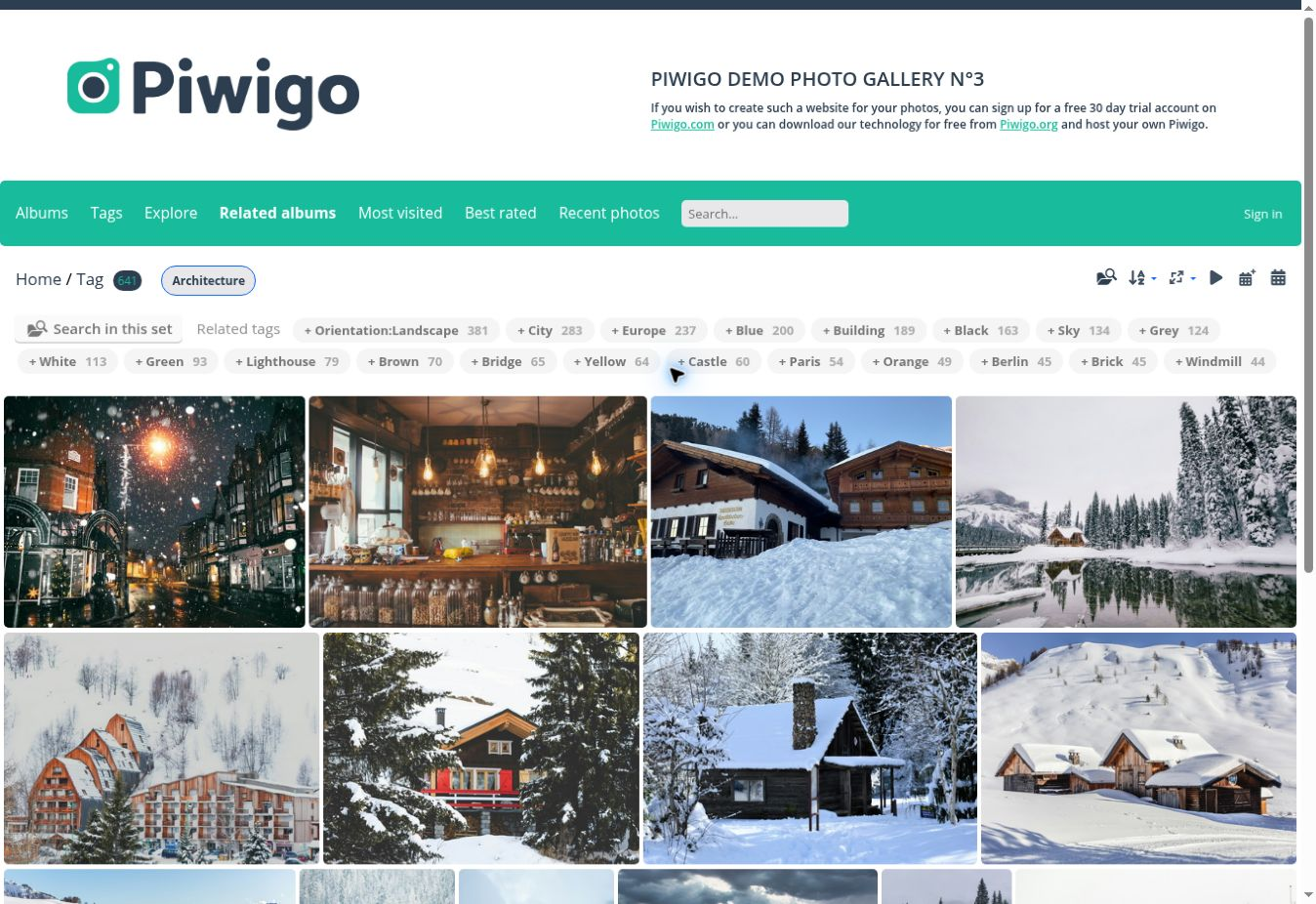
Albums provide the main structure, while tags create connections across it. A photograph could belong to a trip album and still be found through an architecture tag. In Piwigo’s public demo, selecting that tag brings up related tags that narrow the selection further. Our screenshot shows this gallery view, rather than the administration dashboard.
Piwigo’s documented features include public and private galleries, permissions for users and groups, and tools for managing media in batches. Themes and plugins let you adjust how the collection is presented. You can host it yourself or use its paid hosted service.
- Key advantages: album and tag organization, controlled sharing, and customizable galleries.
- Keep in mind: this recommendation centres on structured collections and collaboration. Check the features included in your chosen hosting plan and any extensions before committing.
Agree on a few consistent tag names before inviting contributors. “Holiday,” “Holidays” and “Vacation” can become three separate filing systems surprisingly quickly.
How to choose your photo organizer
Try a small, representative folder first. Include phone pictures, camera files, a few scans and some duplicates. Ask the software to help you find a person, a place and a particular event. Those everyday searches reveal more about its usefulness to you than a long feature list.
For a family archive, start with Tonfotos and its people-focused search. For a library you want to run on your own server, explore PhotoPrism. For a collection that needs albums, permissions and a gallery for other viewers, consider Piwigo.
Before importing everything, find out where the organizer stores names, tags and other changes, and how you would export them. Keep a separate backup of your originals. An orderly library is easier to enjoy, but organization alone cannot replace a lost photograph.
Last Updated: September 28, 2026