Click the “Mute” button on your newly AI-generated ad and watch it quickly, without much concentration. You’ll likely notice something is wrong even if you can’t put your finger on it.
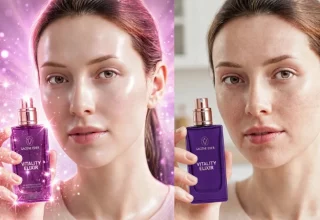
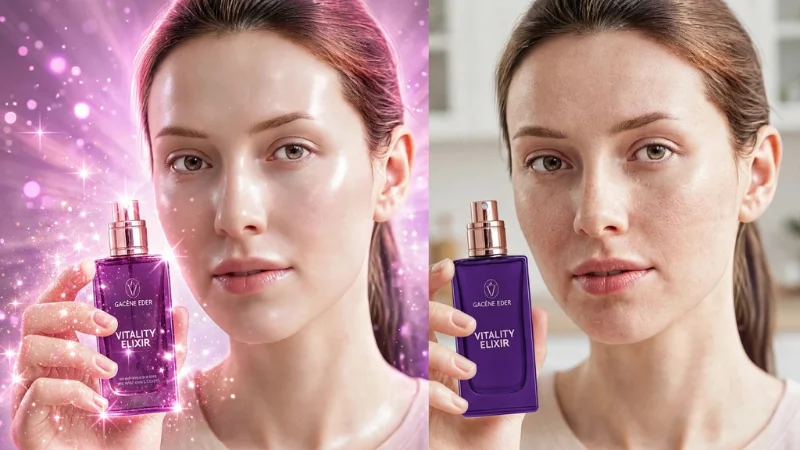
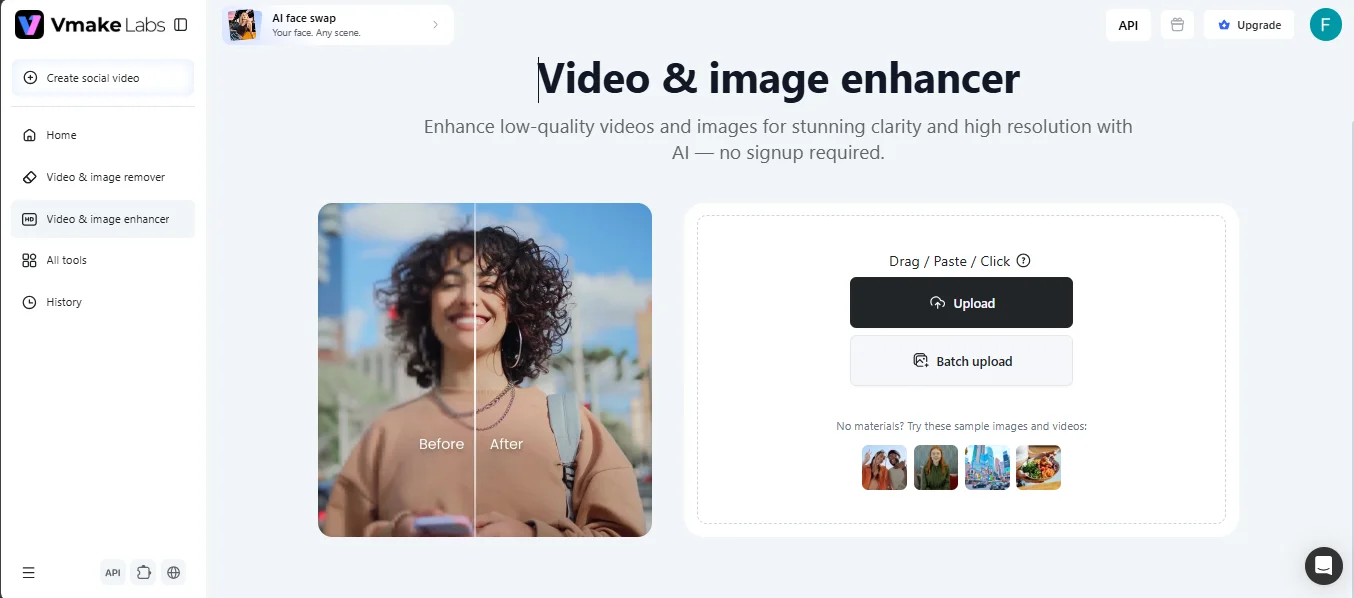
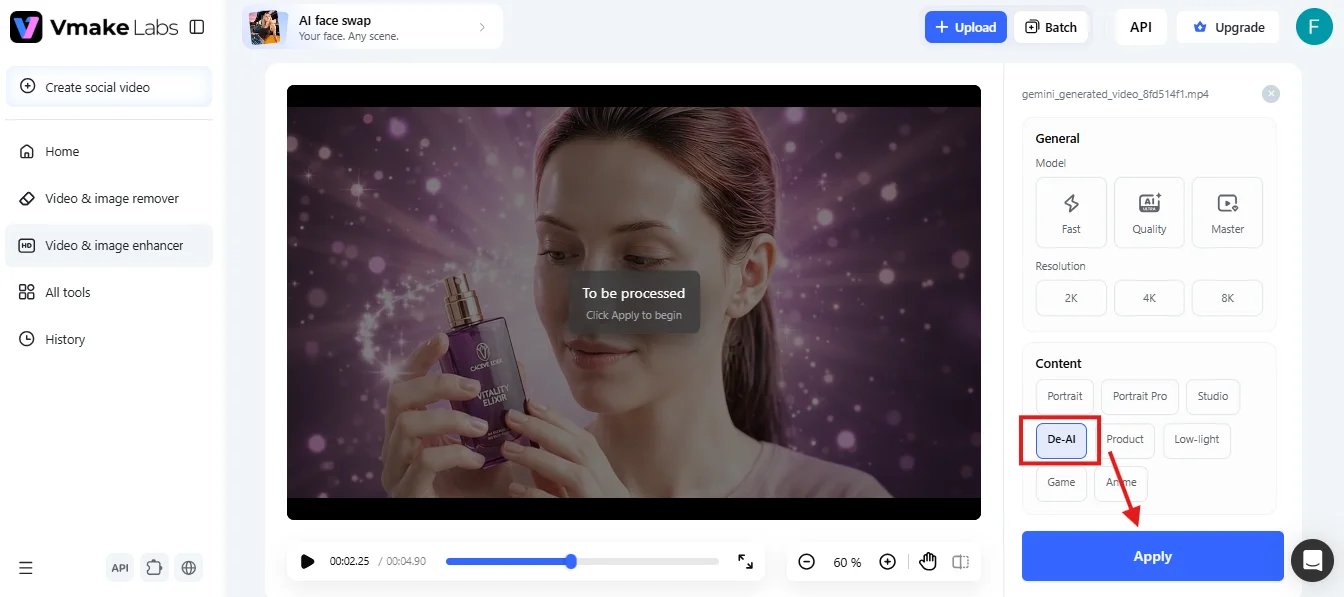
The clip in this guide features a presenter holding a perfume bottle. The screenshots show the De-AI option in Vmake Labs and the short section of a perfume ad used to try it out.
A Field Guide To The Five Tells
Go through your clip looking for these one at a time.
1. Waxy Skin
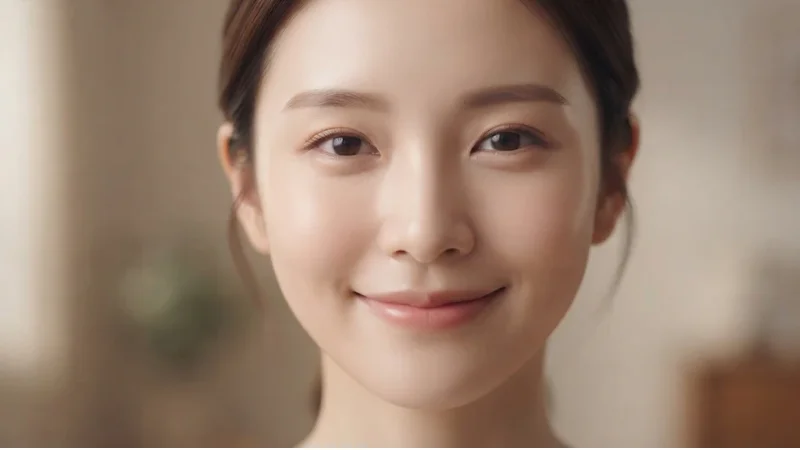
Pores disappear, and cheeks turn to shine like a candle. This is common when shooting close-ups with diffused lighting. Try a portrait enhancement on a few seconds of the close-up.
2. Unstable Textures
Pay close attention to the textures of the fabrics, wood, hair, or other surfaces. They will look fine when you pause the video, but you can see that they are inconsistent when the video plays. It is very difficult to correct the texture problem. The enhancement process works well if the problem is not severe, but sometimes another version must be generated.

3. Reflections That Don’t Add Up
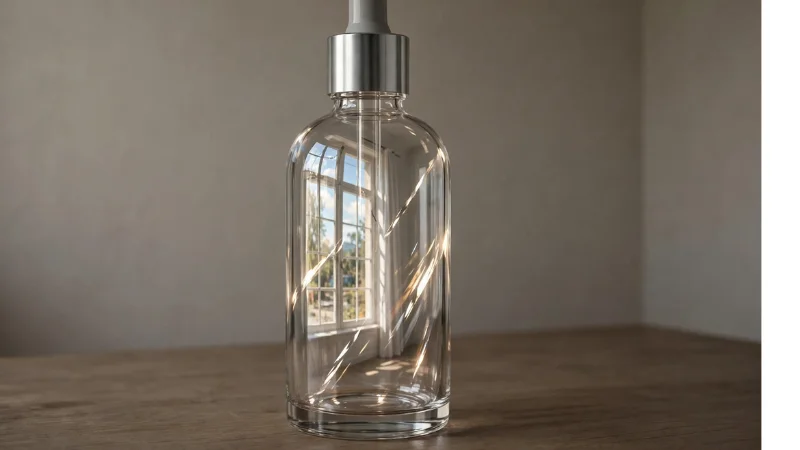
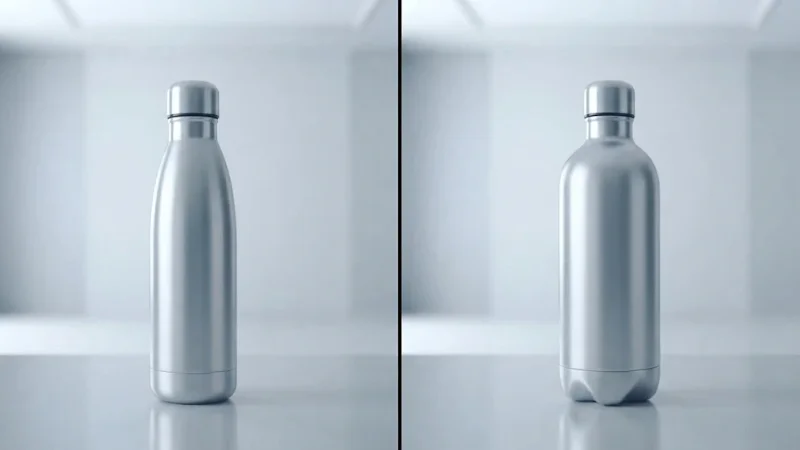
Sometimes, reflections shown on the glass bottle may differ from reflections of the surrounding area. This problem is often seen in product videos with glass, metal, or glossy packaging. Minor changes in the reflection can be adjusted with enhancement. For major changes in the product’s appearance, regenerate the clip.
4. Flicker
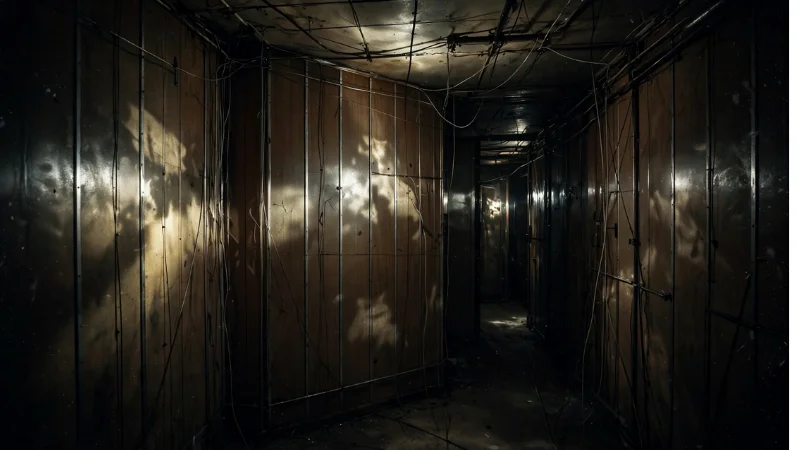
Some bright areas, shadows, or details can change brightness between frames. Darkness in corners and small sharp edges increase the visibility of the issue. Mild flickering may be corrected through enhancement, although check the result throughout the entire clip. The settings that correct it in one portion of the clip affect other portions too.
5. Product Geometry That Changes
The shape of the product is altered midway in the video. The handle gets reduced in size, or the buttons become misaligned. Treat these alterations very carefully. The real product needs to match its appearance in the video.
Pick the Right Fix for What You See
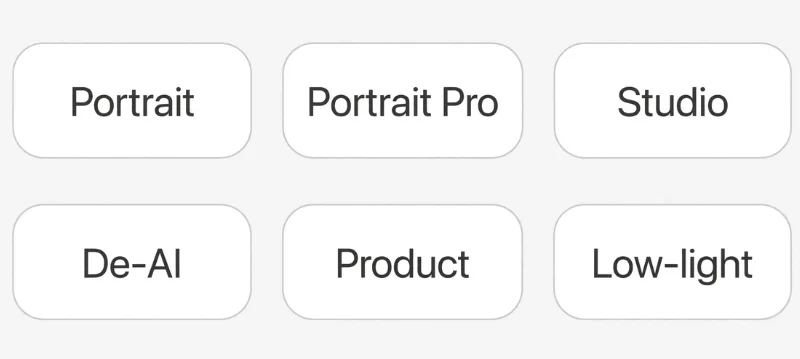
Different video issues need different fixes. Vmake Labs’ Video Enhancer provides various enhancement modes suited for specific needs. Select the one that is best suited for the problem in your video:
| What You’re Seeing | Recommended Fix |
|---|---|
| Overly synthetic look across the whole clip | De-AI |
| Soft or plastic-looking face | Portrait |
| Product surface lacking definition | Product |
| Murky dark scene | Lowlight |
| Broken object or wrong label | None – regenerate |
Do not combine several settings at once. This could result in even more problems, including excessively sharp skin textures or color distortion. It is better to make adjustments separately to understand which one brings improvement to your video.
Focus on the product’s appearance while in motion to make sure it does not change in any way. Sharp videos are pointless when the processing makes the color or shape of the product different from reality.
How to Test De-AI on a Generated Perfume Ad
Test a few seconds before rendering the entire clip.
The supplied demonstration runs a generated perfume ad through the enhancer with De-AI selected.
Input clip: a presenter with a perfume bottle, in close-up, well lit, clear background.
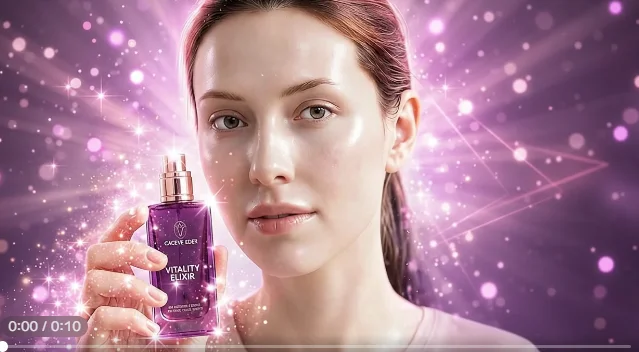
The video looks amazing at first glance, but a closer look reveals a glow of pink pixels along the central axis of the video, with unnecessary sparkles and too-perfect skin.
The perfume bottle seems too rendered as well: the glass is too perfect, the golden cap is too shiny, and the liquid is too radiant. As a result, the video does not seem to be a photograph of a real person with a product, but rather an illustration of it.
Here’s how to run the comparison.
1. Upload a Short Clip
Just upload the clip to the Vmake Labs video enhancer tools. It is unnecessary to run a test with the entire 30-second video clip. Take 3 to 5 seconds that include the hardest part – the presenter rotating the bottle of perfume, a change of grip of hands, the glass bottle reflecting the light, or the camera zooming in. If De-AI mode works with this part, it will probably work for others too.
2. Test One Setting at a Time
Under Content, choose De-AI and click Apply. Export a test version that clearly shows the selected mode. This gives you a record of what you tried and makes it easier to compare each result.
3. Compare Matching Moments in Both Videos
A quick viewing can hide the moment when the two versions differ. Choose a timestamp and watch the corresponding moment in both videos at the same time. In Premiere, Comparison View lets you examine frames side by side.
First, play them normally to see how realistic they are and how well the clip holds up during the test. Next, play the clip in slow motion and observe the movements of the object as it rotates or the hand passes through the shot or the glass reflects the light.
When To Fix And When To Reconstruct
Enhancement and regeneration address different issues. The first deals with visual appearance, while the second is used when the content of the clip is incorrect. Divide your problems into two categories:
Try enhancement first for these surface flaws
Slight waxiness of skin
Overall softness of the picture
Faint gloss on the background patterns
Light flickering in the shadows
Over-smoothed look in general
Regenerate the shot when the product or action changes
Product colors that do not match the actual item
Invented wording on the labels
Hands with fluctuating or impossible fingers
Changing shape in the process of the shot
Physically unrealistic scene, for example, merging or disappearing objects
Any flaw that is still misleading after the enhancement
Before you approve any AI video for social media, keep the actual product next to the monitor. Would a customer feel satisfied if they open the box tomorrow? Would they believe that they’ve got the product seen in the video? If yes, it is an acceptable product. If not, another reconstruction is needed. The FTC’s advertising guidance for small businesses explains that pictures can imply claims about a product just as words can.
Last Updated: November 25, 2026