The challenge to working anywhere without sacrificing screen space is often the laptop screen itself. Although a laptop allows you to work out of a coffee shop, a client’s office, etc., its screen can make that experience very difficult. When you have multiple windows open, text can become squished into very narrow columns. In addition, you spend so much time scrolling instead of just reading and editing content. Carrying another piece of equipment can seem like too much effort, which is why it is tempting to put up with a cramped screen.
A portable monitor solves this problem more simply than most people expect, slipping into a bag alongside a laptop without adding much weight or bulk. This article provides information on what factors you should consider when selecting a portable monitor including the type of panel used, which ports (e.g., USB-C vs. HDMI), and other considerations related to travel.
What Makes a Display Genuinely Portable
When determining if a portable monitor is truly portable, several factors come into consideration. First, the weight and thickness of the display are key concerns. However, these two measurements provide little insight regarding how well the display travels. Therefore, look at the design of the frame and how the ports are protected. Also, find out what kind of case comes with the display. A display that appears flimsy when picked up may not be suitable for frequent trips in a backpack. Metal and reinforced polymer are worth considering. The material alone does not guarantee durability.
Some portable monitors draw power directly from the connected laptop, while others have their own internal battery. The first method simplifies your packing needs by eliminating the need to pack yet another charger. However, since the display is drawing power from your laptop, it will consume your laptop’s battery. A built-in battery gives you another option where outlets are not readily available, though it adds bulk. As always, think about your actual job location(s). A meeting room equipped with outlets requires a completely different setup compared to a longer trip away from power outlets.
Touch Functionality and Its Real-World Uses
While a touch-enabled screen can be beneficial in providing you with the capability to mark-up documents during reviews or allowing clients to interact with presentations, if your job is primarily based around typing and creating spreadsheets then you likely won’t utilize it as much. Be sure to verify compatibility with your laptop’s OS and/or applications prior to spending money for features that you won’t use. Drawing with a digital pen depends on the monitor supporting that particular stylus. Simply possessing a touch-enabled screen does not automatically replace a digital drawing tablet.
Connection Options That Prevent Frustration
A single USB-C cable can handle video and power when your laptop, monitor and cable support the required functions. The connector shape alone does not confirm compatibility. Look for video support such as DisplayPort Alt Mode in your laptop’s specifications. Verify compatibility with your laptop’s video output capabilities and the portable monitor’s power consumption requirements before making your purchase. Even if your laptop supports DP Alt Mode, it is possible that your portable monitor has power consumption requirements that cannot be met solely through the USB-C connection. Additionally, if you plan to attach other devices (games consoles, older laptops, etc.) that don’t possess USB-C video output capability, then HDMI could serve as an acceptable alternative. Since HDMI is incapable of powering your portable monitor, you’ll still need to account for an additional cable.
Having both USB-C and HDMI gives you greater flexibility in terms of connecting different types of machines and being able to switch between your work laptop, personal device and client machine, but regardless of the connectivity method selected, ensure that each device is capable of sending the correct type of signal that your portable monitor can accept.

Stands, Cases, and Setup Speed
A built-in kickstand or a case that doubles as a stand saves you from carrying a separate stand. Inspect whether the stand/kickstand maintains your desired viewing angle and remains steady against tapping. A large stand designed for a large workspace may be unwieldy in a smaller coffee shop environment.
Time spent setting up affects productivity when meeting timing constraints. Case designs that protect the screen panel while simultaneously serving as a stand will minimize the amount of hardware to carry and establish faster setup times. Ideally, you should be able to remove everything from the case, connect the necessary cables and begin working without needing to reconfigure anything else in the area.
Picking the Right Size and Resolution for Travel
Larger monitors offer increased screen real estate for referencing documents and maintaining side-by-side views of multiple windows. Larger screens create larger enclosures which require additional space within your backpack. Determine how frequently you will be carrying it and how much screen space you will actually need. A model that provides sufficient comfort for infrequent excursions may be impractical for regular commutes.
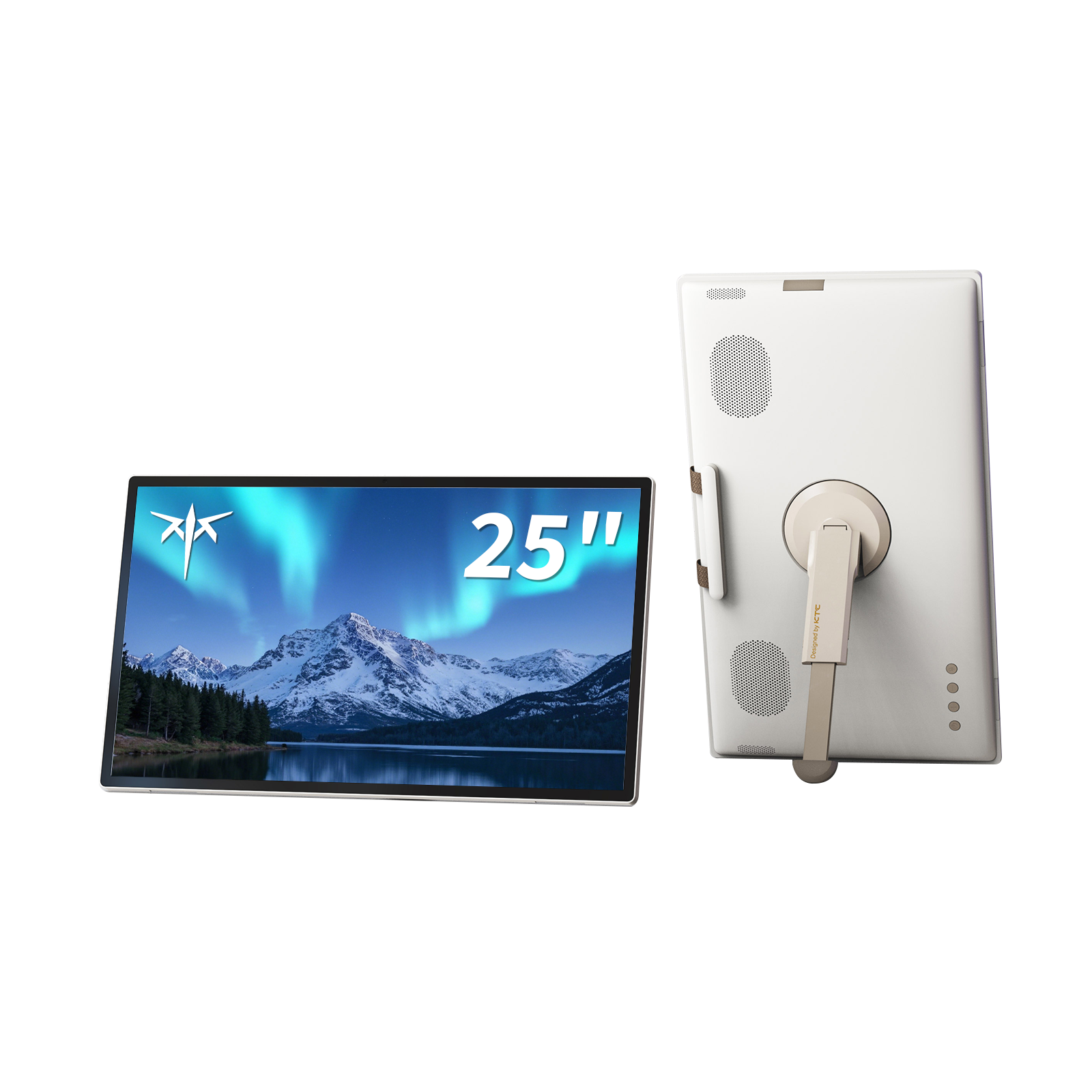
Resolution needs attention as well. Opt for models featuring crisp text that will remain legible at a comfortable zoom level rather than relying solely on screen size alone. KTC’s mobile touch-screen offerings include larger smart displays as well; therefore, check both the dimensions and weight of the exact model chosen. No matter how accurately a manufacturer describes their product as “portable,” there is no assurance that it fits alongside your laptop in your normal bag.
Turning a Single Laptop Screen Into a Real Workstation
You do not have to bring an entire desktop setup along when attempting to improve comfort while working remotely. Additional monitors enable your primary task to reside on its own dedicated screen while displaying references or secondary tasks on an adjacent screen. Depending on your role or function, touch input may assist in performing certain tasks assuming your monitor/software support the respective input methods.
Consider the build, connections, stand and packed size together before making your final decision. A portable monitor should be one that is not only portable but also simple to deploy without hassle. By focusing on those items above and finding products that meet those criteria, remote work locations may become less of a trade-off for you as well.
Last Updated: September 28, 2026