
Music creators often need clean instrumentals for edits, reels, and practice sessions. However, manual EQ tricks rarely remove vocals without harming the mix badly. In 2026, smarter separation models will make vocal extraction faster and clearer. Therefore, choosing the right tool matters for consistent results daily now.
This roundup explains what to expect from an AI vocal remover online. You will learn quality factors like artifacts, stems, and export formats, too. Moreover, we note privacy checks, file limits, and speed for workflows everywhere.
Part 1. What is AI Vocal Remover? How Does It Work?
An AI vocal remover separates vocals from background music in an audio file. It helps users create instrumentals, karaoke versions, or separate stems for editing. Instead of relying on manual EQ, it uses AI models to detect vocal patterns and split voice from music. This makes vocal isolation faster and more practical for remixing, practice, podcast editing, and short video content.
How Does it Work
The process behind vocal separation is simpler than many creators first expect. Most tools follow clear steps below to split vocals from background audio:
- First, the tool scans the file and analyzes layered sound patterns.
- Next, AI detects which frequencies mostly belong to the human voice.
- It separates vocals from instruments using trained audio recognition models.
- Following this, the software creates individual stems for cleaner editing.
- Finally, users preview results, adjust levels, and export usable tracks.
Part 2. Best AI Voice Remover and Vocal Isolation Tools You Need to Try
A creator finishes a vlog, but the chorus vocal clashes with the narration badly. Filmora lets you isolate music and voice inside the same timeline quickly. Instead of exporting to another app, you click one tool and keep editing. That speed matters when you must publish today, not next week, for demanding clients online. It also helps teachers build karaoke tracks.
In Filmora, the AI vocal remover automatically generates separate vocal and instrumental tracks. You can mute the voice, keep the beat, or export clean stems. For podcasts and interviews, precise separation can split multiple speakers, too. This AI voice remover approach keeps everything editable on the timeline, so levels and enhancements stay under your control throughout the edit.
Key Features
- One-Click Separation: Right-click audio, choose AI Vocal Remover, and processing starts instantly. Filmora creates two tracks, vocals and instrumental, within seconds for a preview. You can delete, mute, or balance each stem without reimporting later.
- Timeline Control: Separated tracks land on the timeline, ready for trimming and fades. Apply denoise or EQ only to vocals, keeping the music untouched and clean. Adjust volumes per section, so dialogue stays clear over background music.
- Long Files: Handle long recordings, because Filmora supports up to one-hour files. This suits lectures, DJ sets, and podcasts without splitting segments manually. Export vocals or instrumentals separately, then reuse them across projects easily.
Guide to Use AI Vocal Remover in Filmora
Let’s walk through the steps below to try the AI vocal remover in Filmora for easy vocal isolation:
Step 1. Load the File in Filmora to Proceed
Firstly, press “Import” to load your song or video file, then add it onto timeline. After that, confirm the audio waveform appears clearly beneath the clip on the timeline.
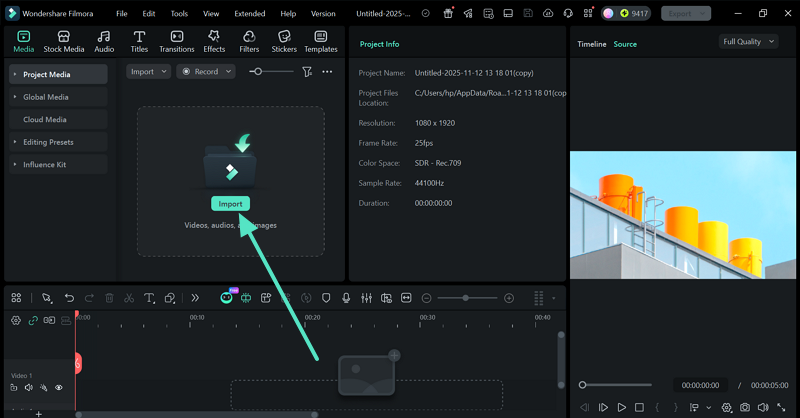
Step 2. Run AI Vocal Remover
Next, right-click the timeline music audio or video, then choose the “AI Vocal Remover” option. Wait while Filmora processes the separation and generates two audio tracks automatically.
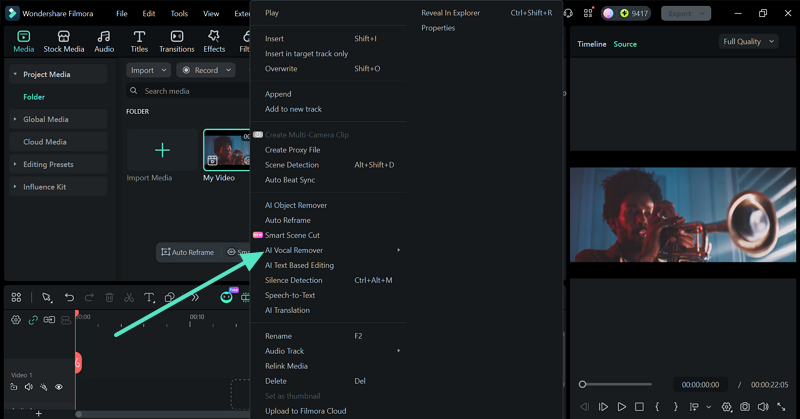
Step 3. Review the Separated Tracks to Continue
Later, check the new vocal track and instrumental track for clarity immediately. Solo each track briefly, then listen for artifacts or missing frequencies.
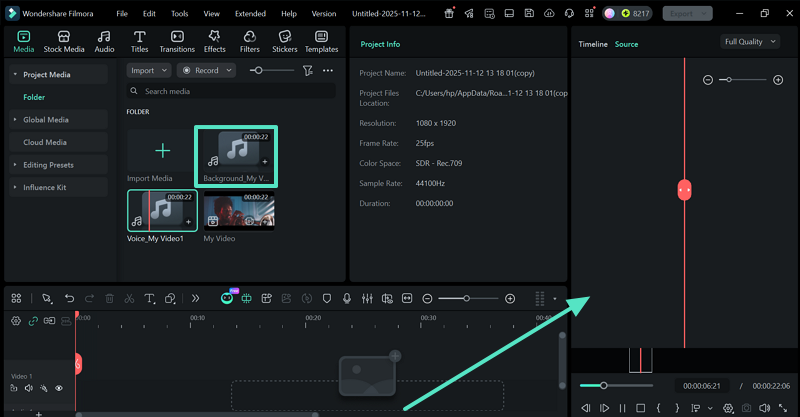
Step 4. Balance and Export the Final Results
Lastly, adjust volume, fades, and EQ to improve separation quality before exporting. Then, press the “Export” button for vocals or instrumentals separately, using your preferred format settings.
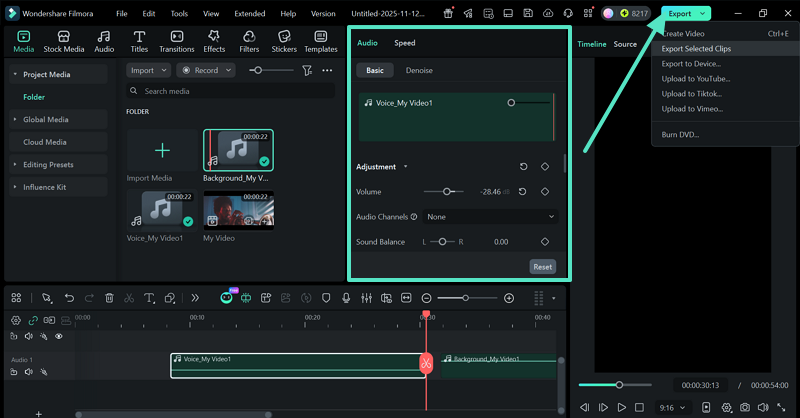
Part 3. Why Desktop AI Vocal Remover Tools Beat Online Alternatives
When you need cleaner results, desktop tools usually feel more dependable due to the following reasons:
- Supports Better Audio Quality
Desktop tools keep more details because files stay full quality while working. WAV and high bitrate files sound clearer, with fewer strange watery sounds. You can preview changes smoothly because playback is not browser-limited. This helps your stems sound balanced, even with busy songs and layers. Better source audio usually creates better results, with fewer vocal leftovers.
- Offers Stronger Privacy Control
A desktop AI voice remover lets you avoid uploading files to unknown sites. Your audio stays on your computer, so you control saving and deleting. This protects client work, unreleased songs, and private voice recordings better. It also helps teams follow simple rules for safer file handling. More control lowers risk and makes approvals feel easier for everyone.
- Gives More Editing Flexibility
Built-in editing tools let you extract voice from a song, then fix issues fast. After separation, you can trim, fade, and line up stems precisely. Noise cleanup and EQ can target vocals without harming the instrumental track. You can repair one section without running the whole process again. That saves time when clients ask for small timing or level changes.
- Runs Faster on Heavy Projects
Desktop apps can use GPU power and cache files for smoother performance. A good voice isolator handles long clips without browser memory crashes. Proxy files and preview renders keep playback smooth during stacked effects. You can keep editing while the tool finishes heavier processing tasks. This reduces waiting and keeps your workflow moving through long projects.
- Delivers More Reliable Results
Online tools can change results when servers are busy or overloaded. Desktop tools stay steady because speed depends on your own system. You can reuse the same settings to match projects and episodes. Fewer blocks and redirects also mean fewer stops during client delivery. That steady output builds trust when deadlines demand clean exports quickly.
Conclusion
To conclude, choosing the right AI vocal remover depends on quality, speed, and privacy. Desktop options give cleaner stems, smoother previews, and steadier control during edits. For creators who also need video editing software, an all-in-one timeline workflow saves their time. If you want quick separation and simple exporting in one place, Filmora is a natural fit for 2026 projects.
Last Updated: April 13, 2026