Search for an AI image enhancer and you’ll find plenty of recommendations. Open a few lists, though, and they start to sound alike. Every tool is “the best”, with features described as revolutionary. Working out what separates them takes a bit more effort.
The photo you’re editing matters. A tool that handles an old family picture well may not be the right choice for a product shot. Another might improve portraits but give you little control over anything else.
For this comparison, I wanted to get beyond the feature lists and look at five AI image enhancer tools available in 2026. Here’s what I liked about each, and the kinds of images I’d use them for.
What Do I Look for Before Choosing These Tools?
Before putting this list together, I considered what would make a difference while editing. Marketing claims only tell you so much. These were the things I looked at:
- Image quality.
- Natural-looking results.
- Ease of use.
- Processing speed.
- AI features such as enhancement, restoration and upscaling.
- The free plan and overall value.
- The types of images each tool works best with.
Each tool below has a particular strength. That seemed more useful to explain than picking a winner for every possible photo.
Top 5 Image Enhancers Worth Trying in 2026
1. Wink: Best Overall AI Image Enhancer
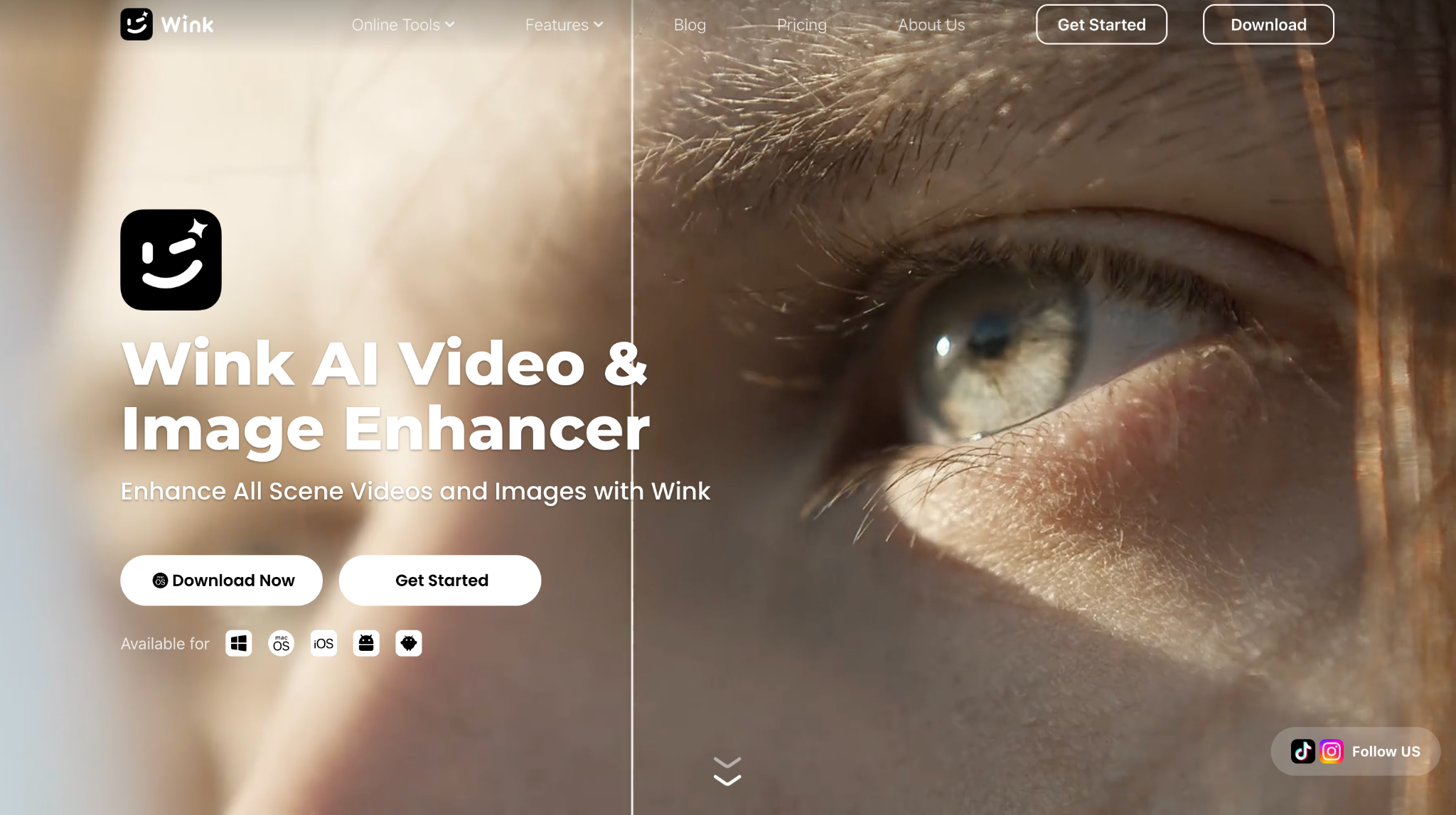
I started with Wink’s AI Photo Enhancer because I wanted something that could do more than basic enhancement. I tried it with a few different images, including an old family photo and a product shot that looked rather flat.
There wasn’t much to learn before getting started. I uploaded an image, chose an enhancement option—HD, UHD or Portrait—and waited a few seconds for it to finish.
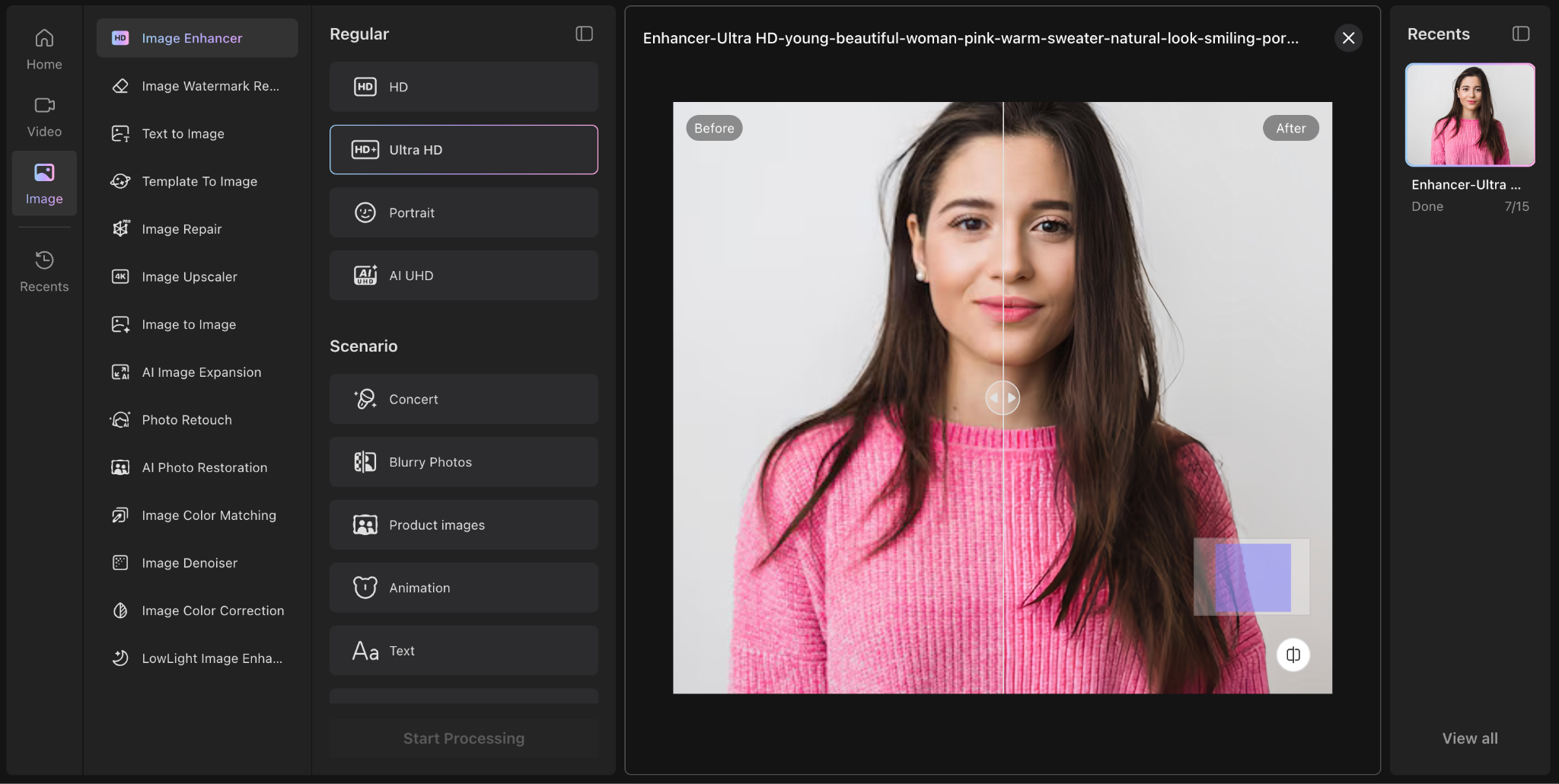
What I liked about Wink was how restrained the edits looked. Colours were better balanced and small details were easier to see, without the whole picture taking on an artificial finish.
Some AI editors sharpen everything until the result looks unnatural. I didn’t run into that here.
Having several tools in the same place was useful, too. I could upscale an image to 4K, restore an older photo or carry on editing without moving to another app. If you edit photos regularly, that saves a bit of time.
Best for:
- Everyday photos
- Portraits
- Old photo restoration
- Product images
- AI upscaling
2. Zawa: Best for Natural-Looking Enhancements
After Wink, I tried Zawa to see how another tool would handle a product photo. I used a simple shot of my white AirPods.
White products can be awkward to photograph. Shadows make them look dull, while poor lighting can hide the small details that give them shape. I uploaded the photo to Zawa to see what it could improve.
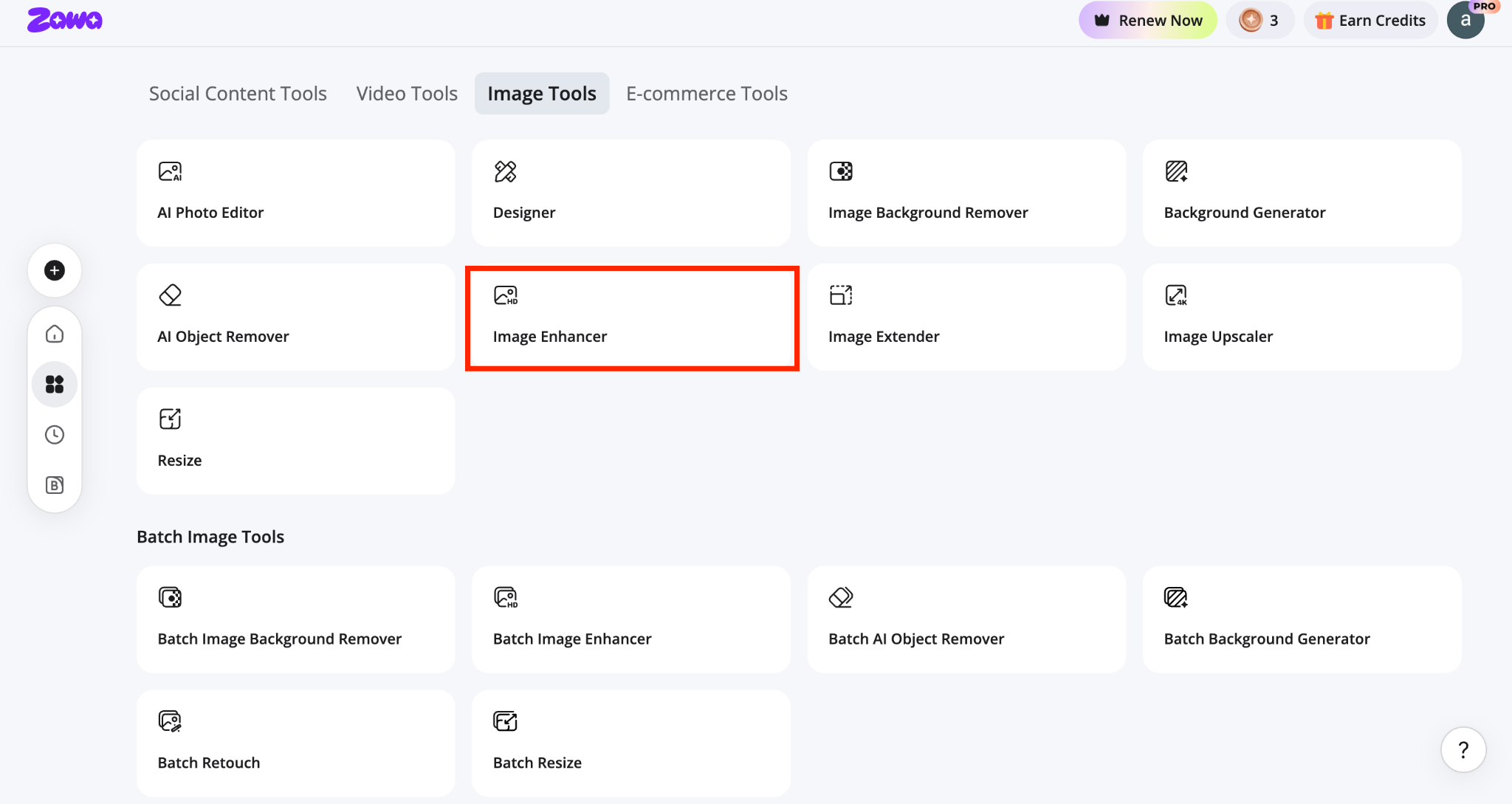
I selected “Product” mode. The AirPods came out looking cleaner, with a brighter white finish that didn’t look overexposed. The edges were more defined, so the product stood out better against the background.
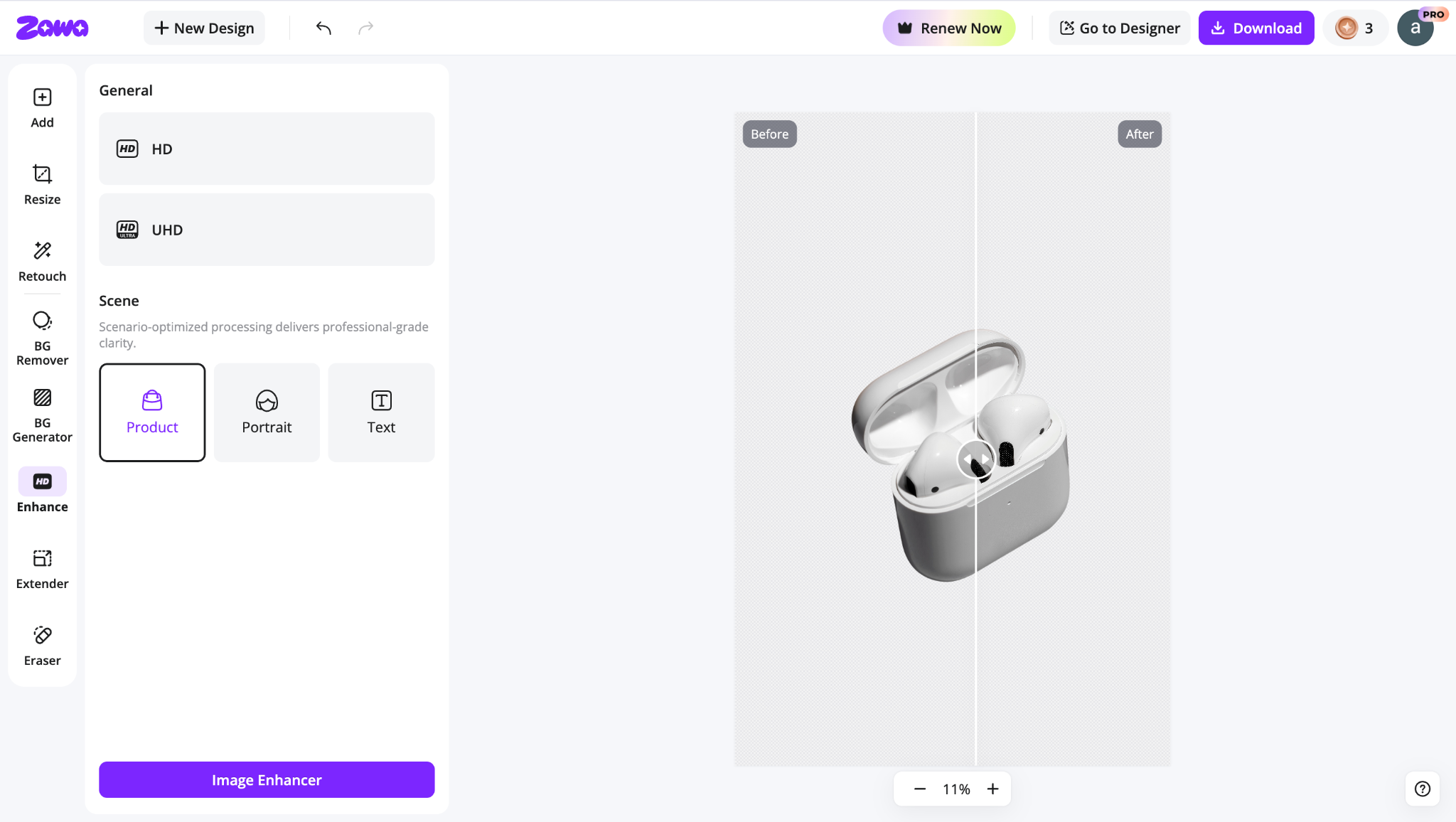
The enhancement also left the product itself alone. It looked like a more polished version of the original shot, which was what I wanted.
I’d consider Zawa if I were regularly preparing product photos for an online shop, a marketplace listing or social media.
Best for: Product photos and marketing visuals.
3. Vmake: Best for Portraits & Selfies
For Vmake, I switched to a selfie. The lighting was fine, but the face lacked definition and the colours looked a little dull.
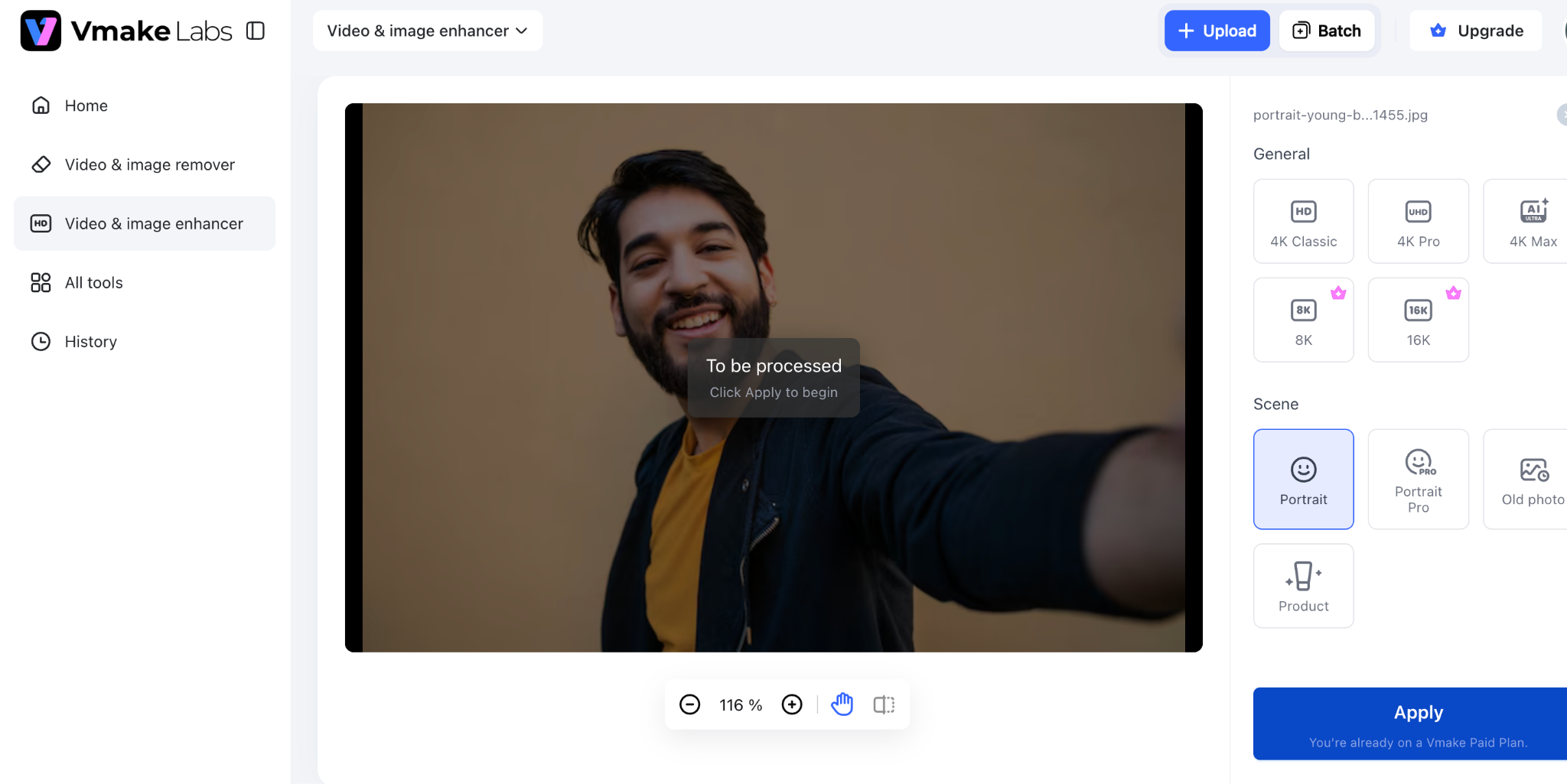
I wanted better detail and colour balance without dramatically changing the picture. Using “Portrait” mode, I got a clearer-looking face and richer colours that didn’t feel oversaturated. The result surprised me: it still looked like the original photo.
That matters to me with portraits. Some enhancers try to correct so much at once that the person ends up looking artificial. Vmake took a more balanced approach, improving the image without making it look heavily edited.
Best for: Portraits and selfies.
4. Remini: Best for Enhancing and Restoring Old Photos
Remini was next. It’s an established name in AI photo editing, and I wanted to see what it could do with an older image.
I chose a faded family photo with washed-out colours and details that had softened over time. After processing it in Remini, the difference was easy to spot.
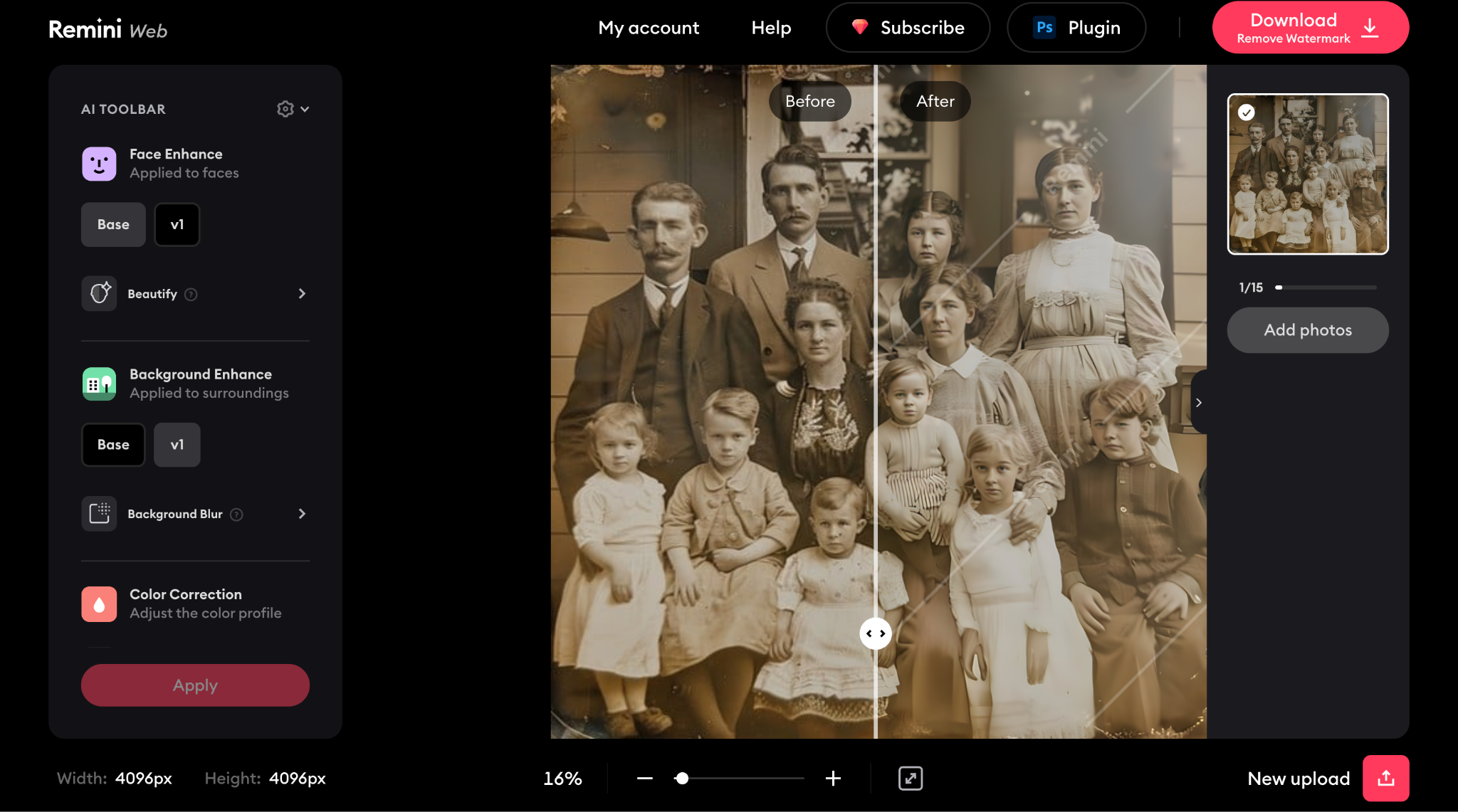
Faces were clearer, the colours looked more balanced and the picture had more life to it. It still retained the character of the original.
For everyday enhancement, I preferred the results from Wink, Zawa and Vmake. Remini made more sense to me for bringing an older photograph back into view, particularly when faded details were the main problem.
Best for: Enhancing old photos and improving scanned images.
5. Let’s Enhance: Best for Print-Ready Visuals
Let’s Enhance takes the fifth spot because its focus is a little different. Increasing resolution is a bigger part of its appeal, especially when an image needs to work at a larger size.
I found it useful for photos intended for printing or a bigger display. The upscaled images looked clean, and most details held up well after enlargement.
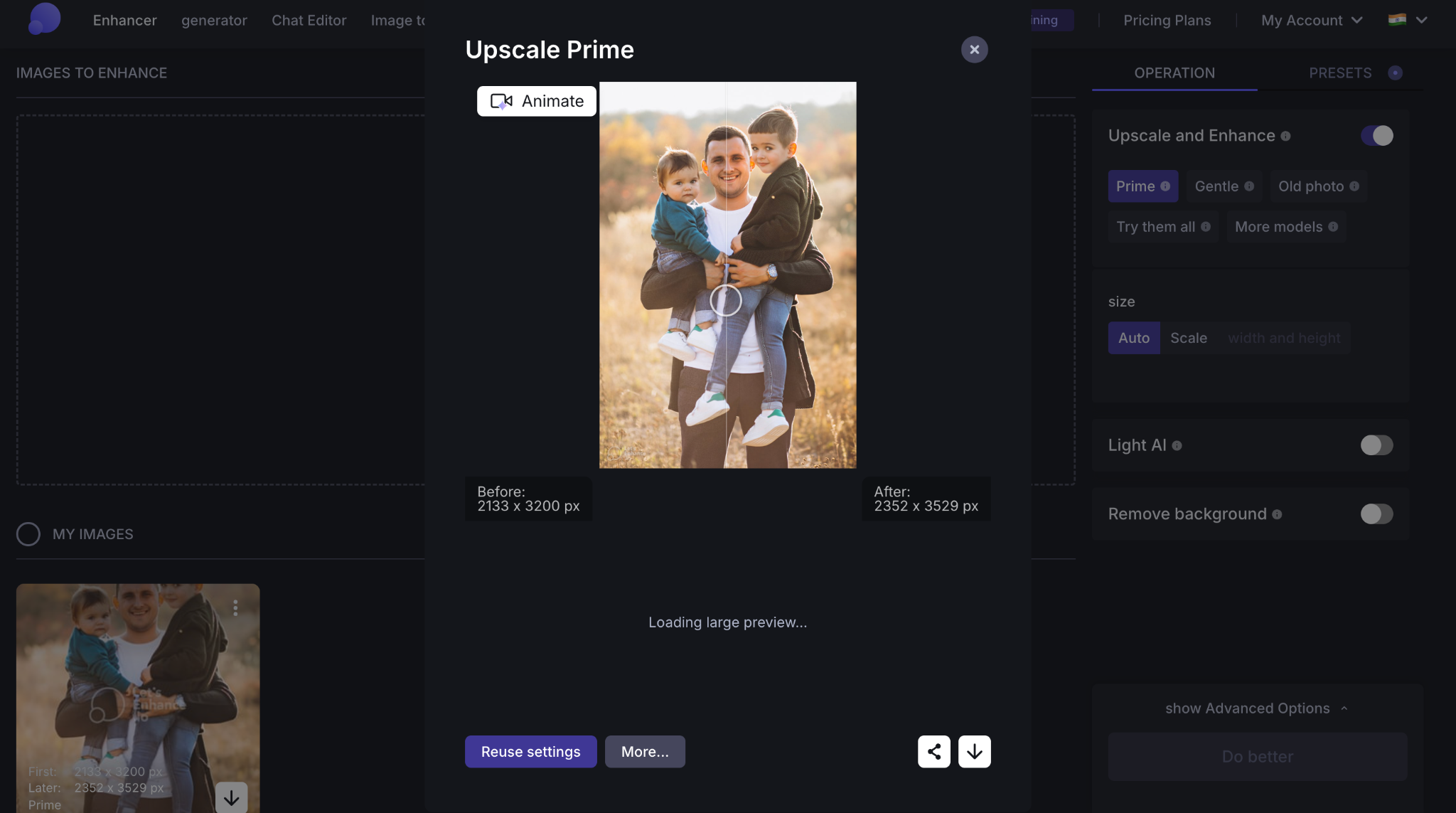
For everyday photo enhancement, I’d still start with the tools higher on this list. But if a larger, higher-resolution output is what you need, Let’s Enhance is worth considering.
Best for: Print-ready visuals.
Quick Comparison
|
Tool |
Best For |
What Stood Out |
|---|---|---|
|
Wink |
Overall image enhancement |
Balanced results, natural edits, and an easy workflow. |
|
Zawa |
Product photos |
Clean product shots with better lighting and detail. |
|
Vmake |
Portraits |
Facial enhancements without over-editing. |
|
Remini |
Old photo enhancement & restoration |
Brings faded photos back to life with improved clarity. |
|
Let’s Enhance |
High-resolution images |
Great for enlarging images for print and larger displays. |
Wrapping Up
There are enough AI image enhancers around that finding one is easy. Choosing one depends on the photos you work with and what needs fixing.
These five tools gave me different reasons to use them, from product shots and portraits to older photographs and larger prints. If you’re unsure where to begin, Wink is a solid starting point.
Try its AI Photo Enhancer on your own photos before committing to a new editing workflow. The results on those images will tell you more than a feature list, and help you decide whether it’s a tool you’ll enjoy using.
Last Updated: September 9, 2026