A desktop auto walker makes your avatar appear to move while your phone stays still. You create a route through the program, and the program generates a sequence of fake GPS coordinates so your avatar appears to travel that route. Determining whether Pokémon GO rewards you for distance traveled is independent of determining whether your avatar reaches a PokéStop.
Auto walking defined
There are two very distinct applications where users typically refer to the experience of “auto walking”. The first type is when you have walked to the store with Pokémon GO turned off on your phone and then opened it upon arriving back home, to find that the distance traveled by your avatar has caused the distance of your egg in incubation to advance. This is a legitimate example of Adventure Sync tracking an actual trip. The second type is when your phone remains on your kitchen counter while your avatar travels around the block in circles. That is an example of a location changing application generating the movement. Pokémon GO’s guidance on Terms of Service violations identifies falsifying location and using modified or unofficial software as grounds for account action.
When reviewing a vendor’s account-risk considerations, the speed slider describes what the software can accomplish, but does not indicate what Pokémon GO allows.
What does a desktop auto walker control?
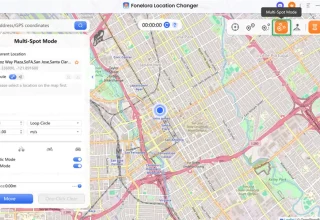
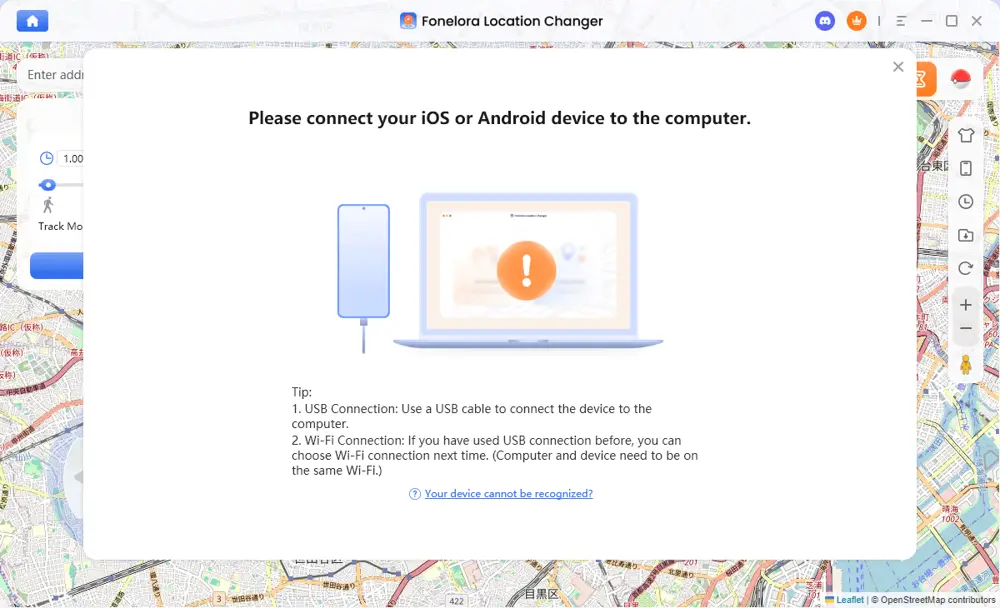
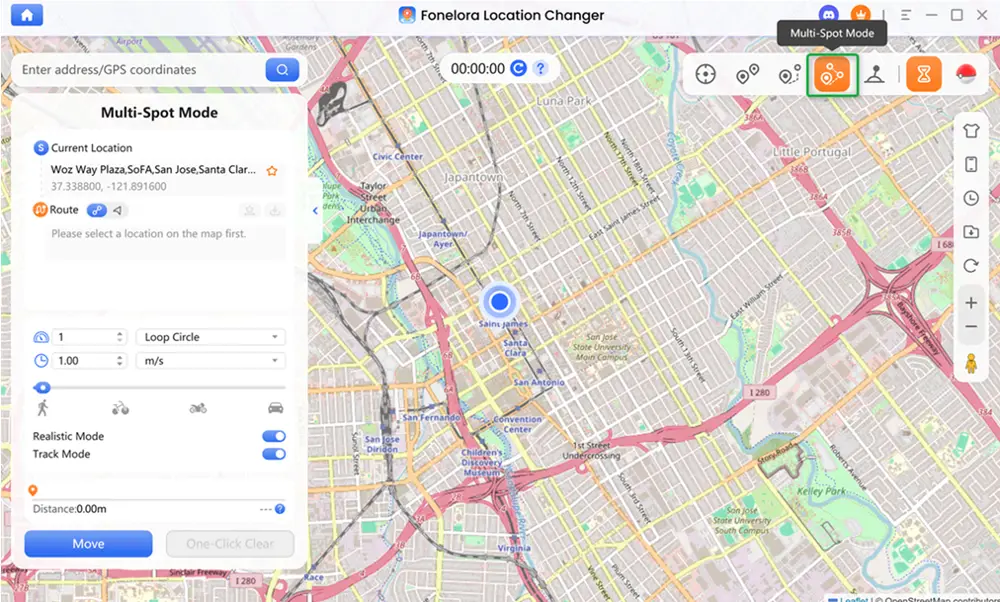
The screenshots from Fonelora Location Changer show a desktop map along with a connection prompt. You draw the route on your computer. The GPS data comes from the connected phone.
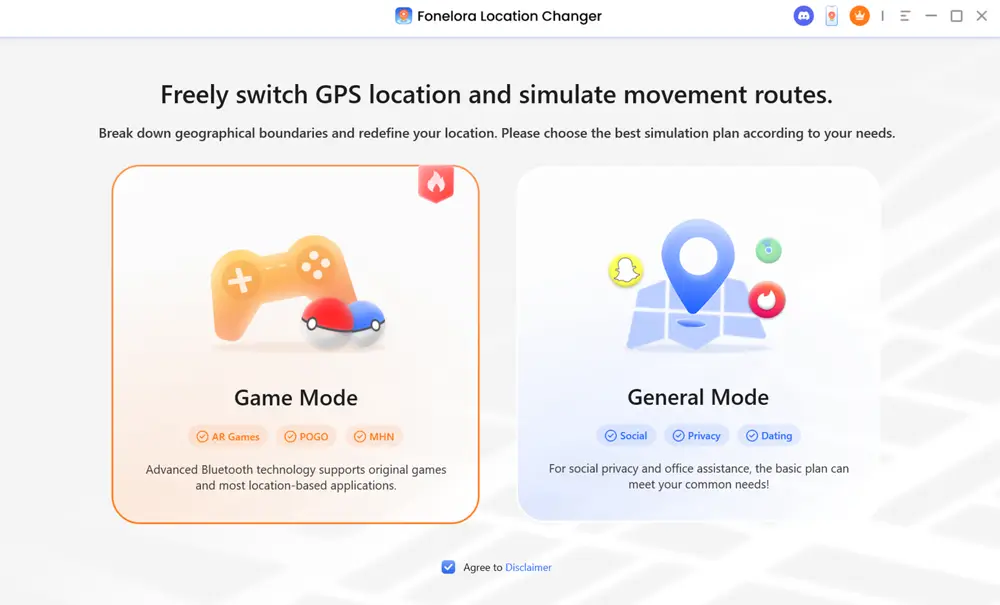
The next screen shows Game Mode and General Mode. These are simply labels used within the application provided by the vendor. Choosing Game Mode will not grant permission from Pokémon GO.
When creating routes on the map, there are two types. A single point route represents traveling from A to B. A multi-stop route can include several additional stops. Visualize the difference between going across a park versus following its perimeter path. On a map, both routes may appear plausible but the phone has moved zero distance.
Mobile version controls route creation
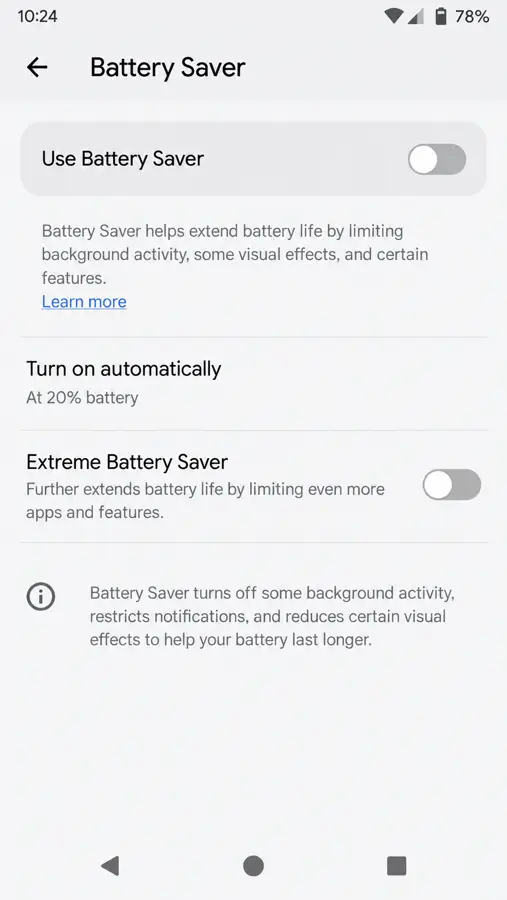
As opposed to a desktop-based tool, the route creation tools reside on the mobile device. The Android screenshot provided by the developer includes a battery option as phones provide an ability to restrict background usage. Modifying that setting will affect how an application functions; however it will offer no indication regarding egg advancement or potential future consequences regarding an account.
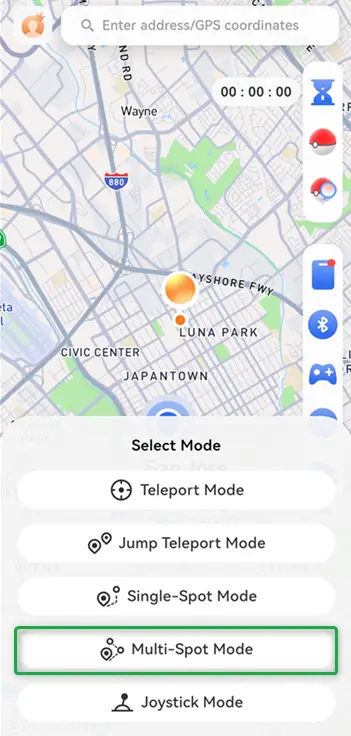
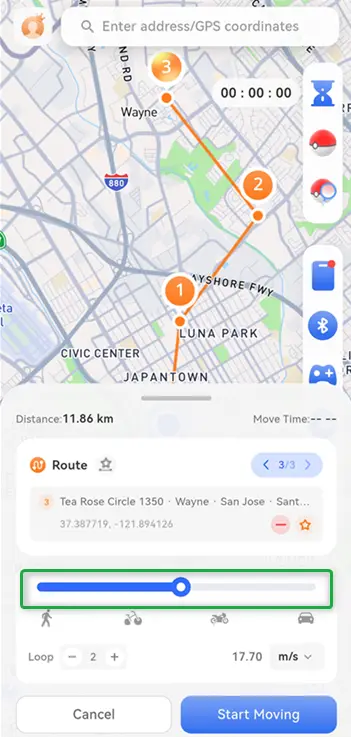
The developer’s Install Fonelora Go link leads to an Android download. Below are mobile screenshots showing options for choosing multiple routes and adjusting speed. Please verify whether specific features are applicable to either device or subscription prior to assuming desktop screenshots describe mobile versions.
Is there a safe speed or cooldown?
Many players share speeds and cooldowns as if they represented a rule in Pokémon GO. Players receive no information regarding acceptable speed for falsifying a location from the official account policy nor a countdown timer that advises players to wait until after a certain amount of time prior to spinning a PokéStop. It merely monitors elapsed time; therefore, it is unable to inform players whether or not a trip has been accepted or if a player will incur penalties related to an account.
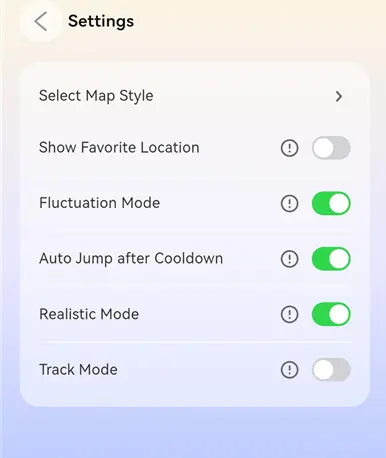
You may want to explore Fonelora’s location controls to determine how the company displays speed adjustments and variations in routes. Additionally, Fonelora’s “realistic mode” designation is merely a description of the simulation of movement. Receiving a successful capture at the conclusion of a route offers no guarantees concerning future access to accounts.
Receiving credit for a trip taken while using Pokémon GO
If you’re having difficulty receiving credit for trips taken utilizing Pokémon GO, begin by examining the settings offered by Pokémon GO. First ensure that Adventure Sync is active in Pokémon GO. Secondly, ensure that Pokémon GO has been granted the necessary permissions from your phone to read relevant fitness data. Finally, ensure that the egg was placed into an incubator prior to commencing your journey.
The official Adventure Sync troubleshooting guide addresses issues including missing permissions, battery-saving settings, and delayed updates in displaying distance traveled. The guide also notes that manually inputted fitness data will not award distance toward completing an egg. Should you have previously confirmed that your phone had accurately recorded the trip but the distance traveled displayed by your egg remained unchanged since yesterday, these steps provide you with tangible items to investigate further.
Last Updated: November 25, 2026