If you are wondering how to remove remote management from an iPad, the direct answer depends on your device’s current state. Remote Management, often referred to as Mobile Device Management (MDM), is an Apple ecosystem feature that allows organizations like schools and businesses to configure, monitor, and control devices remotely. It can be removed directly via the iPad Settings if you have the administrator password, or bypassed using authorized desktop software if you have lost the credentials.
To choose the right removal method, you must first identify which of the two primary MDM lock states you are facing. The first state is being stuck on the Remote Management setup screen during the initial device setup. The second state is having a restricted local MDM profile installed on an iPad that is already activated and accessible. Understanding this distinction is the key to regaining full access to your device.
Stuck on Setup vs. Restricted Settings: Identify Your MDM Lock
Before you can remove the device management, you need to know exactly how the iPad is restricted. Many users confuse MDM with iCloud Activation Lock, but they are entirely different. Activation Lock is a personal iCloud owner lock, while Remote Management is corporate or institutional control. If you are dealing with a personal iCloud lock, you will need to review Activation Lock options without Apple ID credentials.
Use the table below to identify your MDM state and understand the data impact of removing it:
| Lock State | Description | Access Level | Data Preservation When Removed |
| Remote Management (Setup Screen) | The iPad is erased, and during the “Hello” setup process, a screen says the device is managed by an organization. | Cannot access the home screen or apps. | None. The device is already erased. Bypassing this screen will allow you to set it up as new. |
| Local MDM Profile (Settings) | The iPad is already activated. You can use apps, but certain features are restricted (e.g., App Store blocked, camera disabled). | Full home screen access, but restricted by an MDM profile in Settings. | Full preservation. Removing a local profile correctly can preserve your local photos, messages, and app data. |
Once you know which state applies to your authorized iPad, you can proceed to the correct removal or bypass method.
How to Remove MDM from iPad Settings (Official Method)
If you know the administrator password, or if you are in contact with the issuing company or school, the easiest and most secure route is to use the official Apple-supported removal method. This applies when your iPad is activated and you simply need to remove a local MDM profile.
Here is how to remove device management from iPad settings:
- Unlock your iPad and open the Settings app. Tap on “General”.
- Scroll down and select VPN & Device Management.
- Tap the MDM profile listed under “Mobile Device Management”, and tap Remove Management.
- Enter the administrator passcode or your device passcode when prompted to confirm the removal.
Once authorized and removed, all organizational restrictions are lifted immediately. However, if you bought a second-hand iPad or have lost your authorized credentials and cannot obtain the password, you will need to rely on alternative desktop tools.
Important Prerequisites for Bypassing MDM Without a Password
If you do not have the official administrator password, you can use third-party desktop software to bypass the lock. However, before proceeding, you must ensure your device meets strict technical and authorization boundaries.
You must own or be authorized to manage the device: MDM bypass tools are designed for users who legitimately own the iPad or have authorization to use it, but have lost the credentials. Do not use these methods to defeat legitimate employer or school controls on unauthorized devices.
Find My iPad MUST be turned off: This is a hard technical requirement for desktop bypass tools. If Find My is enabled, you cannot complete the MDM bypass or removal process.
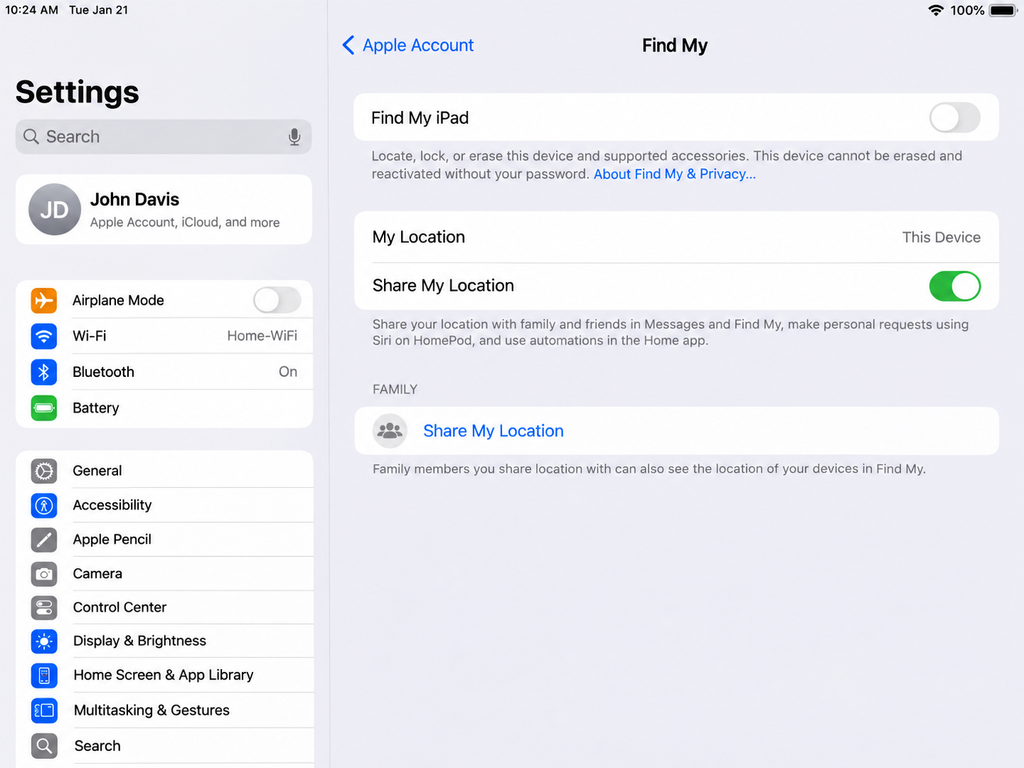
Turn off Find MY iPad
Check device and iPadOS compatibility: Because MDM bypass support depends on your specific iPad model and current iPadOS version, we highly recommend verifying compatibility on the official tech specs page before starting the process or purchasing a license.
Verify it is MDM, not Activation Lock: If the screen asks for an Apple ID and password from a previous owner, that is iCloud Activation Lock, which requires a completely different troubleshooting workflow.
How to Bypass the Remote Management Setup Screen on iPad
If you are stuck on the initial setup screen and cannot get past the “Remote Management” prompt without credentials, an authorized desktop solution is required. For authorized users, Fonelora iPhone Unlocker provides a guided workflow to skip this setup screen and regain access to the device.
Here is how to remove Remote Management during setup:
- Download and Launch: Open Fonelora iPhone Unlocker on your compatible PC or Mac.
- Select the Feature: Click on Bypass MDM from the main interface.
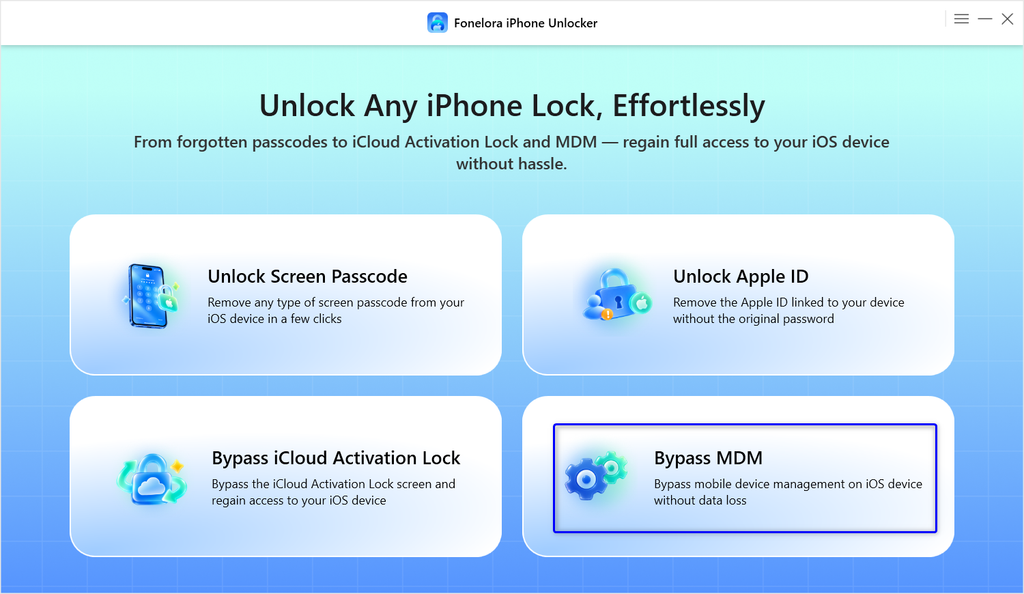
Select Bypass MDM Feature
- Choose the Lock State: Select the Bypass MDM option, which is specifically for devices stuck on the setup screen.
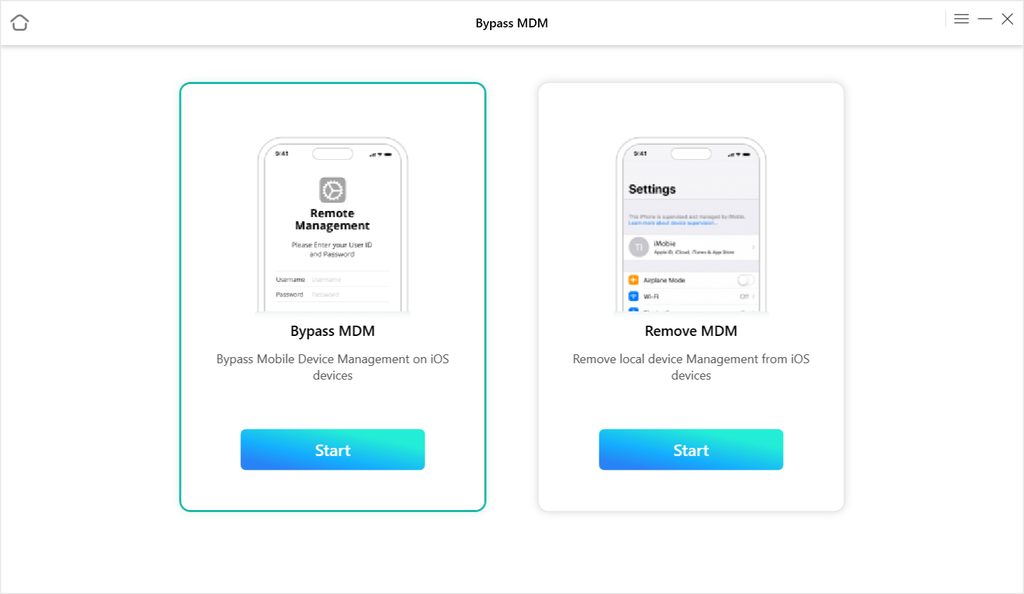
Select the Bypass MDM Option
- Connect the iPad: Connect your iPad to the computer using a stable USB cable. Note that you must have a current version of iTunes installed on your computer so it can successfully recognize the connected iPad.
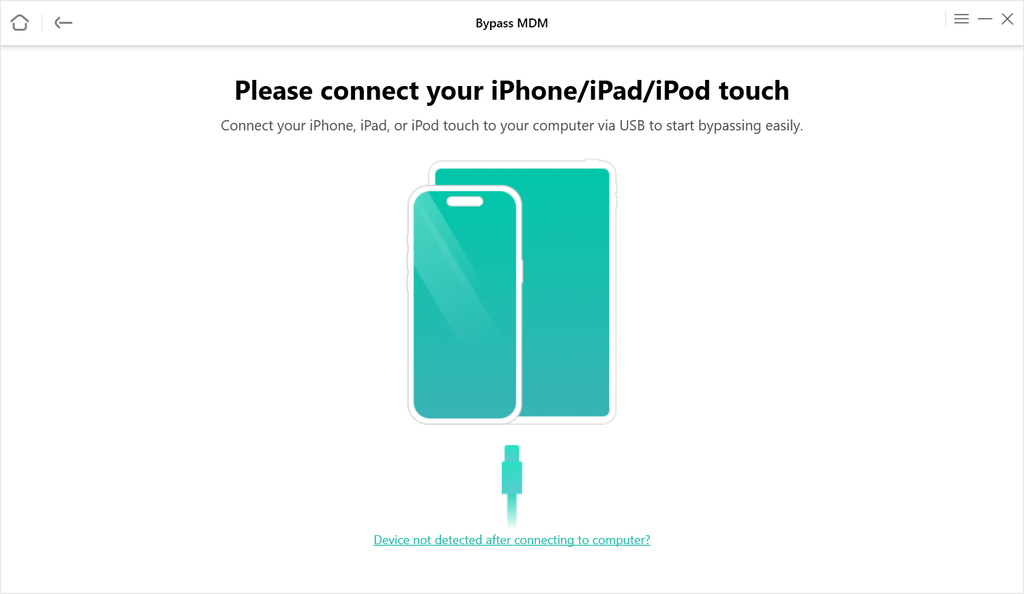
Connect your iPad to Computer
- Start the Bypass: Follow the on-screen prompts to begin. Ensure your device is actually on the Remote Management screen before clicking “Start.”
Note on the Trial Version: The trial version allows you to install the software, connect your device, and view the interface to ensure compatibility. However, completing the actual bypass requires a paid license.
Important Limitation: Bypassing the setup screen is exactly that—a bypass. If you ever factory reset the iPad, erase all content and settings, or flash it via iTunes in the future, the Remote Management lock may return, and you will need to run the bypass workflow again.
How to Remove a Local MDM Profile Without Data Loss
If your iPad is already activated, you can access the home screen, but you are restricted by an MDM profile in Settings, you need a different workflow. In this scenario, you can use another Fonelora iPhone Unlocker option. The key benefit of this specific local workflow is that it preserves your local photos, messages, and other data, unlike a factory reset.
Here is how to safely remove a local MDM profile:
- Launch the Software and select Bypass MDM.
- Choose Local Removal: Select Remove MDM (do not select the setup bypass option).
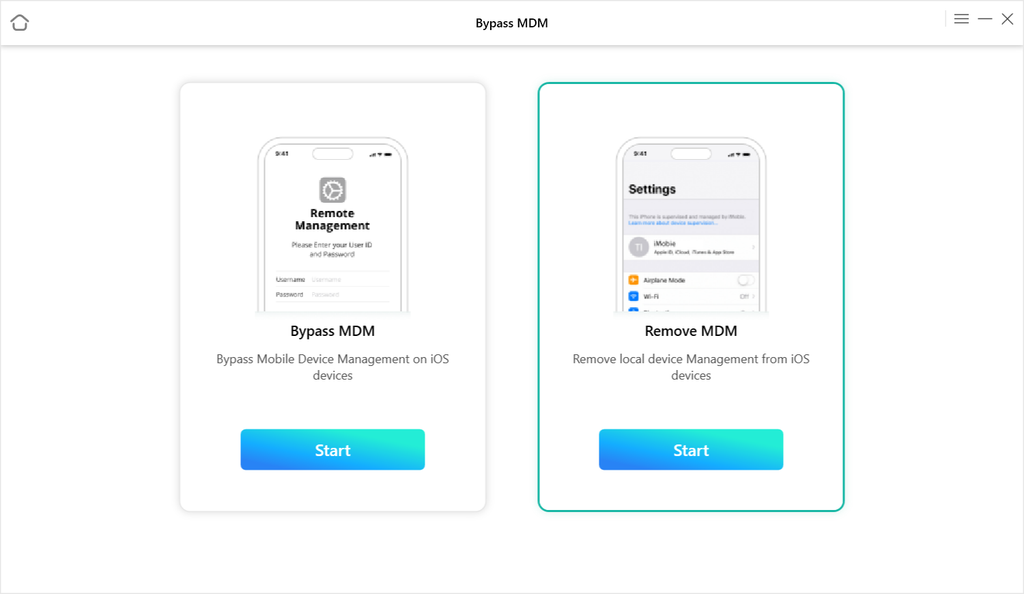
Choose the Local Remove Selection
- Check Find My: Ensure that Find My iPad is turned off in your device settings. This is mandatory.
- Connect and Remove: Connect your unlocked iPad via USB, trust the computer if prompted, and click “Remove Now” to remove the management profile.
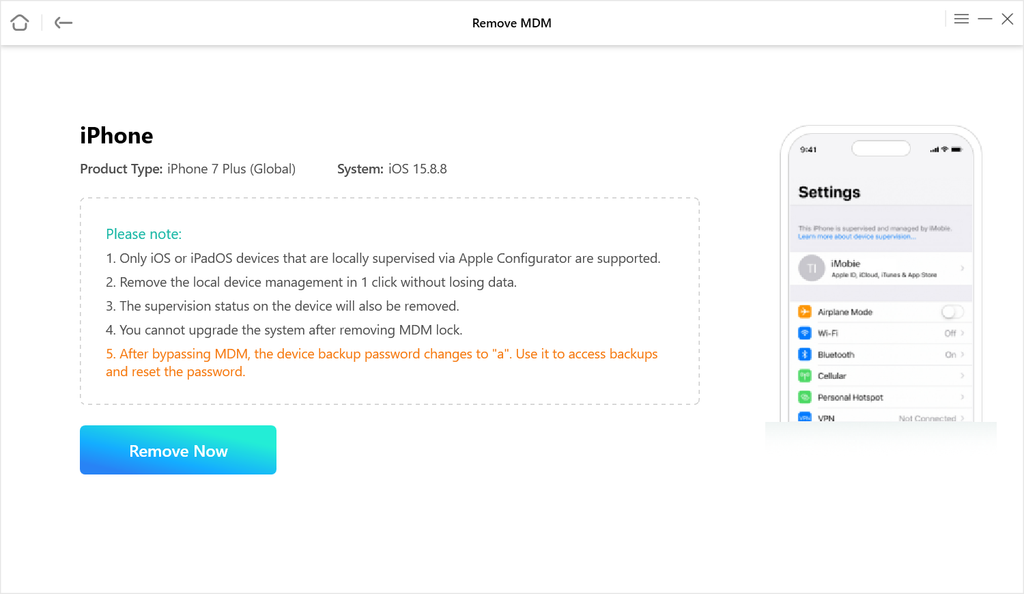
Click Remove Now
Because this process addresses a local configuration profile on an accessible device, your personal data remains safe during the removal.
Will the Remote Management Lock Return After a Factory Reset?
A common concern when dealing with MDM is whether the removal is permanent. The answer depends entirely on which state your iPad was in when you removed the lock.
If you used software to remove a local MDM profile from an already accessible device, the removal is typically permanent for that local installation. Your device will operate normally without restrictions.
However, if you used software to bypass the Remote Management setup screen, it is crucial to understand that this is only a temporary bypass. Organizations register their device serial numbers directly with Apple’s corporate servers. Whenever an iPad is erased, factory reset, or updated via a full iTunes restore, it reaches out to Apple’s servers during the activation process. The servers will see the serial number, recognize it as a managed device, and push the Remote Management setup screen back onto the iPad. If this happens, you will need to run the bypass software again to regain access.
Frequently Asked Questions About iPad Remote Management
Q1. Will I lose my data if I remove the MDM profile?
Removing a local MDM profile from your iPad’s settings using authorized software preserves your local data. If you are bypassing the Remote Management setup screen, the device has already been erased, so there is no local data to save.
Q2. How do I bypass remote management after a factory reset?
If a factory reset brings the Remote Management screen back, you simply need to connect your iPad to your computer and run the MDM bypass workflow in your desktop software again.
Q3. What is the difference between Remote Management and Activation Lock?
Remote Management (MDM) is a corporate or institutional lock that configures device settings. Activation Lock is a personal anti-theft feature tied to an individual’s iCloud account (Apple ID). They require completely different removal methods.
Summary: Regaining Full Access to Your Authorized iPad
Removing remote management from an iPad successfully requires knowing your device’s exact state. If you are dealing with a local profile in Settings and have the credentials, the official Apple removal method is always the best route.
However, if you own or are authorized to manage the iPad but have lost the credentials, you still have options. As long as Find My is turned off, you can use desktop software to safely remove a local profile without data loss, or bypass a stubborn Remote Management setup screen. For users in this situation, checking the Fonelora iPhone Unlocker user guide provides a clear, guided process to address both MDM states, allowing you to regain full access to your supported device.
Last Updated: November 25, 2026