Emails often carry the exact details you need to show someone else. A refund promise. A delivery date. A support agent’s instructions. But emails do not always travel well outside the inbox. Different apps render them differently. Threads collapse. Attachments fail. Important lines disappear inside long conversations.
An image solves this problem. It freezes the message in a fixed frame. Everyone sees the same content. You can place it inside a chat, document, report, or support ticket. The file behaves like a photo of a printed letter: simple to share and easy to read.
People convert emails into images for three clear reasons:
- Speed. Images open instantly on any device.
- Consistency. The layout stays the same everywhere.
- Control. You share only the message you want others to see.
Think of an email as a living web page. It changes depending on the viewer’s device and email client. An image works like a printed snapshot. The structure stays fixed.
When done properly, an email image becomes a small but reliable record. It is easy to store, simple to send, and quick to understand.
Why Convert Emails Into Images
Email files often behave unpredictably across devices. A message that looks clean on your laptop may appear broken on someone else’s phone. Fonts shift. Images move. Parts of the email may hide behind collapsed threads.
An image avoids these problems. It locks the message into a stable visual format. What you see becomes exactly what others see.
Another common issue involves email file formats. Many email programs save messages as EML files. These files preserve the structure of the message, but many users cannot open them without special software. When someone receives an EML attachment, they may not know how to view it.
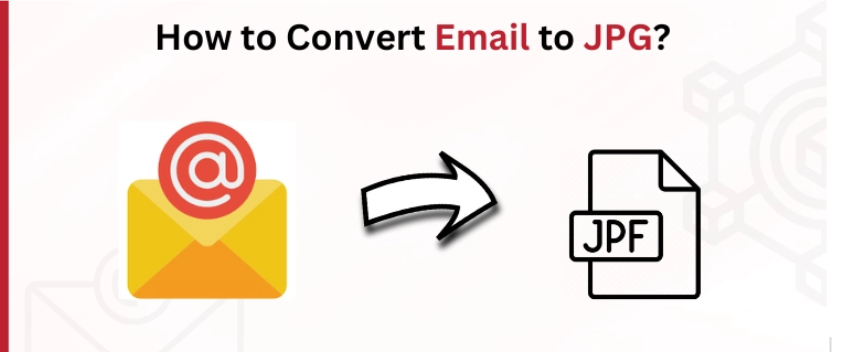
In this case, an online email converter solves the problem quickly. It transforms an EML file into a JPG image that opens on nearly any device. The result is a clean visual copy of the message that anyone can view.
Images also simplify everyday workflows. Support teams often request screenshots instead of raw email files. Messaging platforms display images more reliably than email attachments. When you convert an email into an image, you create a clear and stable snapshot of the original message.
Common Situations When Email Images Work Better
Many tasks require clear proof of a message. Sending the original email file may slow things down. The recipient may not know how to open it. Formatting may change. Important parts of the thread may hide inside nested replies.
An image removes these obstacles. It works like a photo of a printed document. Anyone can open it instantly.
Here are common situations where email images work better than raw email files:
- Reporting phishing or scam emails. Security teams often request a visual copy of suspicious messages.
- Customer support tickets. Support agents frequently ask for screenshots that show the exact message.
- Sharing proof of purchase. Order confirmations and receipts are easier to send as images.
- Team communication. Colleagues can quickly review an email image inside chat tools or project boards.
- Administrative records. An image creates a fixed snapshot of the message at a specific moment.
In each case, the goal is simple: show the message exactly as it appeared. Images achieve this without compatibility problems.
Methods To Turn Emails Into Images
Several methods can convert an email into an image. Each approach fits a different situation. Some work best for quick sharing. Others help preserve the full layout of long emails.
The table below compares the most common options.
| Method | How It Works | Best Use Case | Pros | Limitations |
| Screenshot | Capture the email directly from your screen | Fast sharing in chats or reports | Quick, simple, no tools needed | May cut off long emails |
| Print To Image | Use the print function and export as an image or PDF | Preserving the full layout | Keeps formatting intact | Requires print settings |
| Email Client Export | Export the email from Outlook or another client | Archiving messages | Maintains original structure | Often produces EML files |
| Online Conversion Tool | Upload the email file and convert it into an image | Sharing EML files easily | Works on any device | Requires internet connection |
A screenshot works well when the email fits on one screen. It takes only seconds. However, long messages may require multiple images.
The print method keeps the entire layout intact. It works like printing a letter and scanning it again.
Exporting emails from a mail client usually produces EML files. These files preserve the original email structure but are not easy for everyone to open.
Online converters solve this compatibility gap. They turn email files into simple image formats that anyone can view.
How To Convert An Email Into An Image Step By Step
The process is straightforward. You capture the email and turn it into a fixed visual file. Think of it like taking a photo of a document, but in digital form.
Follow these steps:
1. Save The Email File
First, save the email from your mailbox. Most email clients allow you to export messages as EML files. This format preserves the message structure and metadata.
In many email programs, you simply open the message and choose Save As.
2. Upload The Email To A Converter
Next, upload the saved file to a conversion tool. The converter reads the message structure and prepares it for transformation into an image format such as JPG.
This step removes the need for email software when viewing the message.
3. Convert And Download The Image
Start the conversion process. The system generates a clean visual copy of the email. Once the conversion finishes, download the image file to your device.
4. Share The Image Anywhere
After conversion, the image behaves like any other picture file. You can:
- send it through messaging apps
- attach it to reports
- upload it to help desks
- archive it for records
Support teams often prefer this method. As many help desks explain:
“When users send screenshots instead of raw email files, we can understand the issue much faster.”
A simple image removes technical barriers. Anyone who receives the file can open it instantly and read the message exactly as you saw it.
Conclusion
Emails contain important information, but they do not always share well outside the inbox. Different email programs display messages differently. Attachments may fail. Long threads can hide critical details.
An image removes these problems. It captures the message as a fixed visual record that anyone can open.
The process is simple. Save the email, convert it into an image, and share it like a photo. The result is a portable and reliable copy of the message.
This method works well for support requests, fraud reports, purchase confirmations, and internal communication. In each case, the goal is the same: present the message clearly and quickly.
When an email becomes an image, the information travels faster, cleaner, and without compatibility issues.
Last Updated: March 24, 2026