
Formatting a USB drive can be a stressful experience, especially if it contained important documents, family photos, work files, or other valuable data. Whether you accidentally formatted the drive or did so while trying to fix an error, the good news is that your files may still be recoverable.
In many cases, formatting a USB drive does not immediately erase the data itself. Instead, it removes the file system information that tells your computer where the files are stored. Until new data overwrites the original files, there is often a good chance of successful recovery.
This guide explains how USB data recovery works, what you should do immediately after formatting, and how to recover files safely using professional recovery software.
Can You Recover Data from a Formatted USB Drive?
Yes, in many situations you can recover data from a formatted USB drive.
When you perform a quick format, Windows typically deletes the file allocation table while leaving the underlying data intact. Because the actual files remain on the storage device until overwritten, specialist recovery software can often locate and restore them.
Recovery success depends on several factors, including:
- Whether the drive received a quick or full format.
- How much new data has been written after formatting.
- The health of the USB drive.
- Whether the storage device has developed physical faults.
The sooner you begin recovery, the better your chances.
What to Do Immediately After Formatting
If you’ve accidentally formatted a USB drive, avoid using it any further.
Every new file copied onto the drive increases the risk of permanently overwriting recoverable data.
Instead:
- Stop using the USB drive immediately.
- Do not copy new files onto it.
- Avoid running repair utilities that modify the drive.
- Connect the USB drive to a reliable computer.
- Use trusted recovery software before attempting anything else.
These simple steps can significantly improve recovery success.
How Data Recovery Software Works
Professional recovery software scans the storage device sector by sector, looking for recoverable file signatures and remnants of deleted file system information.
Unlike Windows File Explorer, recovery software does not rely solely on the existing file system. Instead, it searches for traces of documents, images, videos, archives, emails, and many other file types that still exist on the drive.
Once the scan is complete, the software displays recoverable files, allowing you to preview many of them before restoring the data to another storage location.
How to Recover Data from a Formatted USB Drive
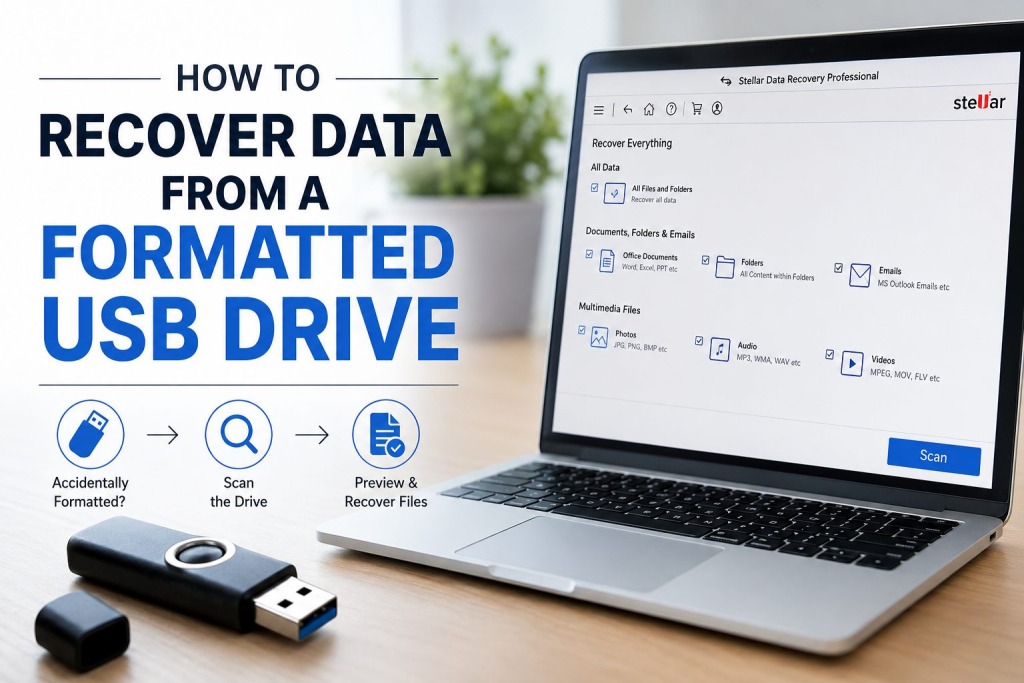
One of the most reliable solutions available is Stellar Data Recovery Professional for Windows. The software is designed to recover files from formatted, deleted, corrupted, and inaccessible storage devices, including USB flash drives, external hard drives, SSDs, memory cards, and more.
Step 1: Install the Recovery Software
Download and install Stellar Data Recovery Professional on your Windows computer.
Important: Install the software on your computer’s internal drive—not the formatted USB drive—to avoid overwriting recoverable data.
Step 2: Connect the USB Drive
Insert the formatted USB drive into your computer.
Wait for Windows to detect the device before launching the recovery software.
Step 3: Choose the File Types
The software allows you to recover:
- Documents
- Photos
- Videos
- Audio files
- Emails
- Archives
- Or simply select Recover Everything
Choosing specific file types may reduce scan time if you’re only looking for certain files.
Step 4: Select the USB Drive
Choose the formatted USB drive from the list of available storage devices.
If the drive doesn’t appear, reconnect it or try another USB port before rescanning.
Step 5: Run the Scan
Start the recovery scan.
If the quick scan doesn’t locate your files, use the Deep Scan option. Deep Scan performs a much more thorough search and is particularly effective after formatting or file system corruption.
Depending on the drive’s size, scanning may take anywhere from several minutes to over an hour.
Step 6: Preview Recoverable Files
After scanning completes, browse the recovered folder structure or search by file type.
Many file formats can be previewed before recovery, helping verify that the files are intact.
Step 7: Recover Your Files
Select the files you wish to recover and save them to a different storage location, such as:
- Your computer’s internal drive
- Another USB drive
- An external hard drive
Avoid restoring files back onto the formatted USB drive until recovery is complete.
Why Choose Stellar Data Recovery Professional?
Stellar Data Recovery Professional is trusted by home users and IT professionals alike because it supports recovery from a wide variety of data loss situations.
Key features include:
- Recovery from formatted USB drives
- Deleted file recovery
- Support for NTFS, FAT, exFAT, and other file systems
- Deep Scan for difficult recovery cases
- Photo, video, document, and email recovery
- Preview before recovery
- Recovery from external hard drives, SSDs, memory cards, and USB flash drives
- User-friendly interface suitable for beginners
These features make it an excellent option when valuable files need to be recovered quickly and safely.
Can a Fully Formatted USB Drive Be Recovered?
Recovery after a full format is generally more difficult than after a quick format.
On modern versions of Windows, a full format writes zeros to the drive while checking for bad sectors. This process significantly reduces the likelihood of recovering previous files.
However, if the drive was formatted using another operating system or an older version of Windows, recovery may still be possible depending on how the formatting was performed.
Professional recovery software can determine whether recoverable data still exists.
Common Reasons USB Drives Are Formatted
USB drives are often formatted because of:
- Accidental formatting
- File system corruption
- “USB drive needs to be formatted” errors
- Virus or malware infections
- Switching between Windows and macOS
- Preparing the drive for reuse
Regardless of the cause, stopping use of the drive immediately remains the most important first step.
Tips to Improve Recovery Success
To maximise your chances of recovering data:
- Stop using the drive immediately.
- Never save recovered files back onto the same USB drive.
- Perform recovery as soon as possible.
- Use professional recovery software rather than free tools that may have limited functionality.
- Back up important files regularly to cloud storage or an external drive.
Final Thoughts
Accidentally formatting a USB drive doesn’t always mean your files are gone forever. In many cases, especially after a quick format, your documents, photos, videos, and other important data can still be recovered if you act quickly.
Using a trusted solution like Stellar Data Recovery Professional makes the recovery process straightforward, even for users with little technical experience. With support for formatted drives, deep scanning, file previews, and recovery from a wide range of storage devices, it provides a practical way to recover valuable data before it is permanently lost.
The key is to stop using the formatted USB drive immediately and begin the recovery process before new data overwrites the files you want to restore.
Last Updated: July 22, 2026