
Transparent backgrounds are used more often than people realize. They help images blend smoothly into websites, presentations, product listings, and social media designs. Without a transparent background, images can look boxed in or out of place.
So, if you’re wondering how to make a background transparent, you’ve come to the right place. However, the real issue is that there are many ways to remove or make a background transparent.
To make sure you have all the options at hand, we’ll be discussing the different ways you can choose. This way, you can choose an option that best suits you.
Option 1: Remove Image Backgrounds Instantly with HitPaw Online Background Remover
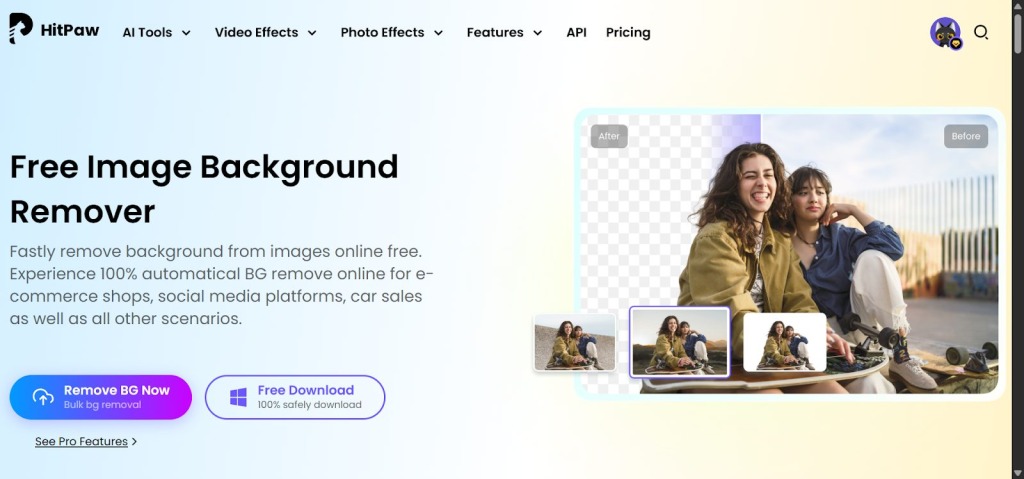
HitPaw Online Background Remover is an all-in-one AI-powered tool that automatically removes and replaces image backgrounds, enhances photos and videos, and provides specialized tools like passport photo creation, logo transparency, and image animation—making professional-quality editing fast and effortless for both personal and business use.
Key Features of HitPaw Online Background Remover
1. AI Background Removal
Automatically detects and removes backgrounds from photos, including people, animals, cars, logos, and more. Creates transparent or editable images instantly for e-commerce, social media, or creative projects.
2. Bulk Background Processing
Process multiple images at once—up to 50 per batch—saving time while maintaining precise, high-quality background removal.
3. Background Replacement & Templates
Replace removed backgrounds with preset templates or custom colors. The AI ensures subjects fit naturally, giving professional and realistic results.
How to Make Background Transparent with HitPaw
Here’s how you can make a background transparent using our background remover:
Step 1: Open the background remover tool in your browser. You do not need to sign up or install anything. If you want, you can also download the desktop app for offline background removal.
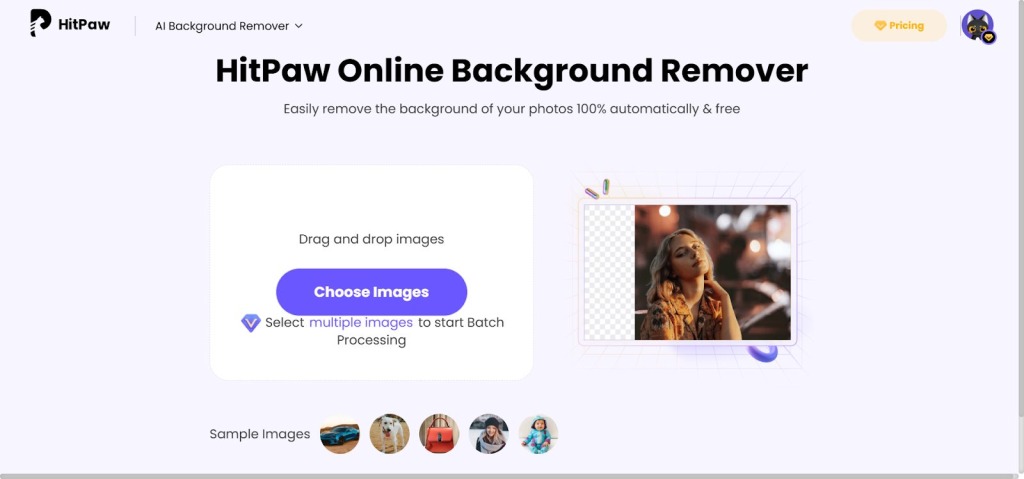
Step 2: Drop your photo into the tool or choose images from your desktop. The background remover supports common formats like JPG, PNG, and even WebP.
The tool will automatically remove the background from the image without clicking any buttons.
Step 3: Use any template of your choosing to either change the background or download the image with a transparent background.
Why HitPaw Online Background Remover is the Easiest Option
When it comes to how to make background transparent quickly and reliably, HitPaw Online Background Remover stands out for several reasons, including:
- Instant Online Results: No installation or setup is needed, and the tool runs directly in your browser on nearly any device.
- AI Accuracy: The background remover uses a smart algorithm to detect subjects and cut out backgrounds cleanly, even around hair, edges, and detailed shapes.
- No Watermarks or Ads: Unlike many free tools that add branding or limit features, our tool lets you download clean, transparent images without distractions.
- Safe and Secure Upload: Your photos are processed with secure connections, and only you can view or edit them.
- Works on All Devices: Whether you’re on a phone, tablet, or desktop, you can create transparent images with the same AI support.
Option 2: Photo Editing Software
If you want more control over how a transparent background is created, traditional photo editing software is still a solid choice. These desktop tools let you zoom in, refine edges, and manually adjust details if the automatic result isn’t perfect.
Here’s how you can use each of these tools for making a transparent background:
Using Adobe Photoshop
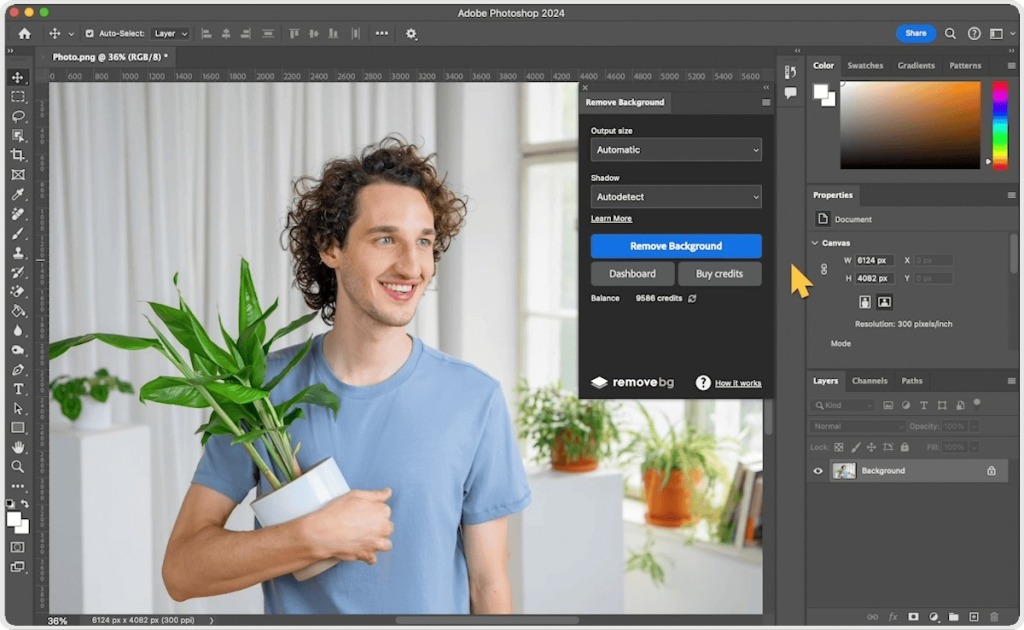
Adobe Photoshop is one of the most widely used editing tools in the world. While it has a learning curve, it gives you fine control over every part of the image, including background removal.
How it Works
- Open your photo in Photoshop and unlock the image layer.
- Go to the Quick Actions panel (found under the Properties panel).
- Now, click Remove Background. Photoshop will automatically detect the subject and remove the rest.
- If some parts are left or cut too much, use the Refine Edge Brush Tool or Brush Tool on the mask to touch up the edges manually.
- Save or export the image as a PNG to preserve transparency.
Using Canva
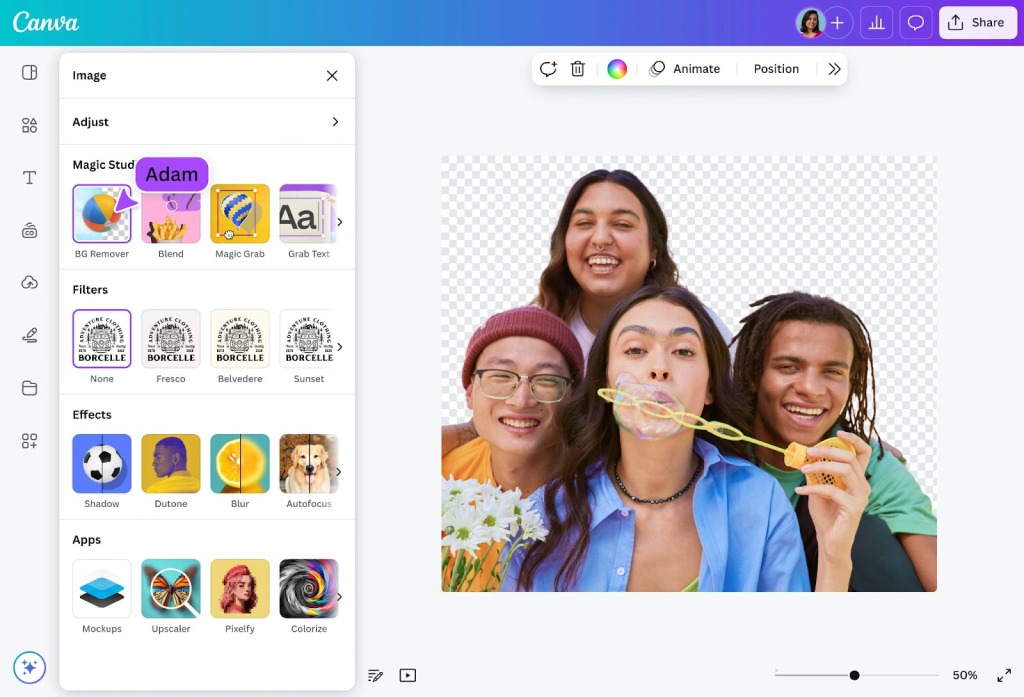
Canva offers a built-in Background Remover feature in its editor. Surprisingly, it is much more user-friendly than Photoshop, but still requires a subscription for full use. The tool is designed to let anyone strip backgrounds.
How it Works
- Upload your image into the Canva editor or select one from your uploads.
- Click on the image so it’s selected, then choose Edit Image in the top toolbar.
- Select Background Remover from the left panel. The tool will automatically erase the background.
- If needed, adjust using the Erase and Restore brushes to clean up edges or bring back small parts of the image.
- Once happy with the result, download the image with a transparent background checked in the download settings.
Built-In Tools on Mobile and Desktop Devices
Built-in background removal tools are helpful when you need a quick result and do not want to use third-party apps. Below is how each platform handles background removal.
On iOS (iPhone and iPad)
The best part about iOS is that its devices have a subject selection feature inside the Photos app that is fully automatic.
Steps to Remove Background
- Open the Photos app and select the image you want to edit.
- Tap and press on the main subject in the photo until a glowing outline appears.
- Now, release your finger and choose Copy or Share from the pop-up menu.
- You can now paste or save the subject without the background anywhere you need.
On Android Devices
Android background removal depends on the phone brand, but most modern devices include object selection in the gallery. If not, you can use browser-based tools like HitPaw Online Background Remover to make a transparent background.
Typical Steps for Android
- Open the Gallery or Photos app and choose an image.
- Tap Edit or Tools, then select Object Eraser, Background Remover, or Subject Selection (name varies by device).
- Let the system automatically detect the subject.
- Confirm the selection and save the image or copy the cut-out subject.
On macOS
macOS offers two built-in ways to remove the background. Let’s discuss both of them. You can choose whichever you want.
Using Preview
- Open the image in Preview.
- Click the Markup toolbar and select Instant Alpha.
- Drag over the background area to remove it.
- Save the image as a PNG to keep transparency.
Using Photos
- Open the image in Photos.
- Right-click the subject and choose Copy Subject.
- Paste it into another app or document without the background.
Which Method Is Best for Making a Transparent Background?
The best method depends on how much time, skill, and control you need. Manual tools like Photoshop or Canva make sense when you want precise edits or are already working inside a design project.
They offer flexibility, but they also take more time and effort. Built-in tools on phones and computers are useful for quick cutouts, but results can be inconsistent, especially with complex backgrounds.
For most users, AI-based online tools, like HitPaw Online Background Remover, are the most practical choice. It removes backgrounds cleanly, works directly in the browser, and requires no editing skills. If you want reliable results, it is one of the most recommended options to try.
FAQs
1. Does a Transparent Background Work on All Image Formats?
In most cases, yes. You can remove the background from almost all common image formats. However, the output format matters. Since JPG and JPEG do not support transparency, the final image must be exported as PNG or WEBP to keep the background transparent.
2. Is It Possible to Make Background Transparent Online?
Yes, it is completely possible to make a background transparent online. Many modern tools use AI to detect the subject and remove the background directly in a browser. Online tools handle the processing automatically and allow you to download a transparent image in PNG format.
3. What Is the Fastest Way to Make a Transparent Background for Free?
The fastest way is to use an AI-based online background remover. You upload the image, the AI removes the background in seconds, and you download the transparent file. Tools like HitPaw Online Background Remover are popular among these online tools as there are no installation or manual steps included.
H2: Final Thoughts
If you regularly work with images, having a transparent background can make a big difference. It helps your visuals look more professional and easier to use across different platforms. The key is choosing a method that matches your goal.
The real value comes from AI-powered online tools, such as HitPaw Online Background Remover. They remove backgrounds accurately without asking you to learn new software or adjust settings.
This tool uses AI to detect subjects, handle edges cleanly, and deliver transparent images in seconds. Everything runs online, so you can work from any device.
Last Updated: March 12, 2026