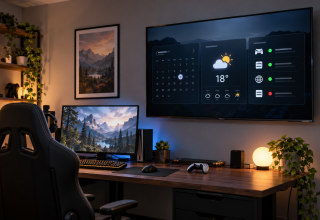
I have a 43-inch TV in my apartment doing nothing. It’s mounted above a desk and aimed at a chair I hardly sit in. For three months, it has shown the same animated standby screen. I bought it for split-screen co-op, but my co-op partner moved to Denver. With an unused screen and too much curiosity, I did the sensible thing: turned it into a dashboard.
It took an afternoon to set up. Working out what to use took longer. The idea sounds simple: make a screen show things. In practice, there are plenty of bad options and a few good ones. An idle TV, a spare monitor or an old tablet propped against a wall may be enough hardware to get started.
What you need first is something to run it. A Raspberry Pi, a Fire TV Stick, an old laptop, whatever. Then you need digital signage software for smart tv that can push content to that device over your network, because you’re not going to plug in a USB drive every time your calendar changes like it’s 2009.
Why a Dashboard Beats Another Streaming Box
A streaming stick gives you Netflix. A dashboard gives you information. At a desk, I find the second job more useful. You can use the same screen for either; the difference is what you ask it to show.
The distinction that helped me was passive versus active screens. A passive screen plays something you chose earlier. An active screen pulls from a live source and updates without you touching it: weather, calendar, train delays, server status. Or the build pipeline your team keeps breaking at 4 p.m. on Fridays. That last one got a standing ovation in my household, population one.
Smart TVs can do this well, but the first attempt can be frustrating. My Samsung and Chromecast both struggled with a simple looping weather page, for reasons I never diagnosed. Routing the content through a suitable external player made the setup easier to manage. Check the player software before assuming the TV’s browser can handle everything.
What Actually Belongs on the Screen
Most people make the screen too busy. They build an everything dashboard, add fourteen widgets, and stop checking it by day three. There is too much to read at a glance.
My rule is three blocks, no more. I use a calendar strip down the left, a weather panel at the top right and a rotating block for whatever I’m tracking that month. That last block has shown package tracking, a trip countdown, game server population for a weekend LAN and the number of days our office printer has survived. It’s the part I actually check.
You want a screen to glance at. If a widget hasn’t earned a glance in two weeks, remove it. Editing the layout down is usually more useful than finding another thing to add.
Building one that survives week three
- Write your three blocks on paper before changing any settings.
- Allow at least fifteen seconds per slide as a starting point. Give people longer if there is more to read.
- Use a dark background with high-contrast text so it doesn’t light up the whole room at night.
- Mount it where you already look. Mine faces the desk chair rather than the couch.
- Turn it off outside waking hours. Leaving it on 24/7 adds operating hours and wastes power when nobody is looking.
Scaling It Beyond One Glanceable Strip
One screen can be an afternoon project. Add another in a different room and you have a new question: can you control both from the same place?
Controlling two or three screens separately means remembering which device runs each piece of content, updating them by hand and discovering that your dashboard has become a small IT project. Central control is where a paid plan can earn its fee. But adding a screen does not automatically mean buying a subscription. OptiSigns currently offers a free plan for up to three supported screens. Raspberry Pi, Windows and Linux players are supported on that plan; Fire TV devices are not. Compare the player, app access and plan restrictions before choosing hardware. If the free tier does what you need, save your money.
| Setup | Best for | Real downside |
|---|---|---|
| Single spare TV, one room | A personal dashboard, a status display | You’re the only one who knows how it’s wired |
| Two to five screens | Home offices, small studios, game rooms | Manual updates get old fast |
| Shared or public spaces | Lobbies, waiting areas, team walls | Content approval becomes an actual job |
The Part Nobody Warns You About
Two things caused friction in my setup, and neither came up in the guides I had read.
First, display burn-in and panel wear. Leaving the same bright widgets on an OLED for long periods can cause uneven pixel wear and permanent burn-in. There is no fixed timeline for every panel. Moving the layout a few pixels may help, but it is no guarantee. Use the TV’s built-in protection settings, keep brightness sensible, rotate the content and turn the display off when you don’t need it.
Second, privacy. A screen that pulls from your calendar and your email is a screen that could, in theory, show your calendar and your email to anyone who walks past. If your dashboard lives somewhere semi-public, treat your data sources the way the European Union treats personal information under data protection rules, which is a long-winded way of saying: don’t put anything on a shared wall you wouldn’t hand to a stranger.
This matters even at home. A TV can appear in the background of a video call, Twitch stream or group photo. Treat anything on that display as information other people might see.
Where the Technology Is Heading
The interesting shift isn’t in the software, it’s in what the screens can perceive. Research labs have been pushing computer vision into everyday hardware for years, and much of that work comes out of places like MIT, where vision and interface research has run for decades. Cameras and sensors embedded in displays make audience-aware content possible: the screen recognizing there’s nobody in the room and dimming, or a lobby wall adjusting its message based on time of day.
For a home setup, that’s mostly noise today. For anyone running a screen in a business, it’s the next leap, and it’s worth knowing it’s coming so you don’t buy hardware that can’t grow into it. Even NASA’s public data feeds, which are free and remarkably easy to pipe into a display, hint at where this goes: NASA has published live mission telemetry for years, and the tools to display it have gotten simpler every cycle.
Frequently Asked
Does an old smart TV work?
Usually, yes. An HDMI-equipped TV can show the output from a compatible streaming stick or mini PC. Check that your chosen player supports the signage software and the plan you want. The player handles the dashboard, so you don’t have to depend on the TV’s built-in apps. Keep that external device updated too.
How much bandwidth does it use?
Text and a few images generally use much less data than live video. The actual amount depends on how often the dashboard refreshes and what it downloads. Leave video panels off unless you need them.
Your Move
You already own the screen. Now you get to decide whether it earns its space or keeps showing that standby animation.
Start with three blocks, one room and a sleep schedule. The setup can take an afternoon; the useful part is having answers on the wall instead of checking your phone fifteen times a day. Give it a month. If you outgrow the layout, you’ll have a better idea of which extra features are worth paying for.
What’s the one thing you check on your phone every morning? Put that on the screen first. That’s a better starting point than filling every corner with widgets.
Last Updated: October 15, 2026