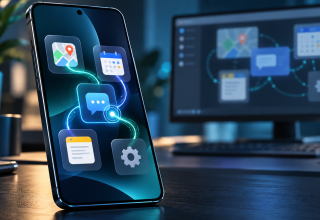
Once you have searched for a mobile AI agent operating apps like OpenClaw, you will most likely encounter 2 completely different types of products.
The first type puts an agent close to your phone. You can talk to it, chat to it, approve a task, and get notified once the task is completed. But this agent is probably located somewhere else (such as at home on your PC/server).
The second type puts the loop of execution directly on the phone. This means it could be checking the current screen; opening an already installed application; tapping a button; entering some text; calling a tool from your phone; checking if everything worked; and continuing until the task is finished.
Each type of product is useful. However, they are not identical.
That difference matters because “mobile AI agent” has become a generic term. You may see many examples of products using mobile AI agents during a product demonstration. An example would include a chat app with an agent; a remote gateway connected to your smartphone; and an Android app that performs actions directly on other applications. Although these products appear very similar, once the agent is asked to make changes to a setting; search through an application; or transfer data from one workflow to another; the differences will quickly emerge.
What OpenClaw brings to mobile
OpenClaw is a personal AI assistant built around a Gateway. The Gateway connects models, tools, skills, messaging channels, and companion devices through one control plane. Its Android app is a companion node rather than a standalone Gateway: the app connects to a Gateway running elsewhere and adds chat, voice, approvals, screen access, and device-aware capabilities.
The design of this architecture is appropriate for an agent which will be used in multiple environments (computers, services and/or messaging channels). The phone provides a portable interface and a means for the Gateway to obtain information about devices. With the ability to communicate with the same assistant remotely, you can accept or reject actions that have consequences and allow the Gateway to perform work that should not be done by the phone.
OpenClaw’s node system also gives the Gateway access to capabilities exposed by a connected device. Its documentation describes command surfaces for camera, screen, notifications, system functions, and mobile UI control, with Android commands available only when the relevant control is enabled.
There is one important setup detail: the official Android app does not host the OpenClaw Gateway. You still need a Gateway running on macOS, Linux, or Windows through WSL2, and the phone must be able to reach it over the network.
So if your goal is “run my existing OpenClaw agent from my phone,” the mobile app fits well. If your goal is “install one Android app and let the agent operate this phone without maintaining another machine,” you are looking for a different architecture.
What “operating apps” should mean
An app-operating agent is required to accomplish more than simply launching an app.
Consider the following example:
Open my messages, locate the address Alex sent me this morning, save it as a note, and initiate drive directions.
The agent will need to complete each of the steps in order:
- Find the appropriate messaging context;
- Read the visible (or allowed) data from within the context;
- Extract the address without confusing it with another message;
- Create a memo;
- Send the final destination information to the maps app;
- Verify that the routing was initiated properly.
An application-launching tool does not fulfill the entire request. Neither does a chatbot that tells you which buttons to press.
App-operations typically use either one of two paths to achieve their goals:
- Structured tools: an app or the OS provides a pre-defined function such as creating a calendar entry, retrieving battery status, etc., or initiating navigation.
- Interface control: the agent uses interface control to read the current state of the app screen and interact with the visible controls on the screen by tapping, scrolling through lists, or entering text into fields.
Structured tools are generally faster and more reliable. However, using interface control allows agents to reach areas where there is no specific integration available, but if the screen layout changes unexpectedly or an unintended dialog appears, it may fail. In general, a useful mobile agent should employ both structured and interface-control methods, along with a decision rule for favoring the safest method.
Android itself is moving in this direction. Google’s current AI documentation describes AppFunctions, which lets apps expose functions as tools, and UI automation as a fallback on supported devices. This gives mobile agents a path beyond brittle, one-off screen scripts.
Three architectures hiding behind the same phrase
When people search for an AI agent that can operate mobile apps, they usually encounter one of three designs.
1. The phone as a remote control
The agent operates on your computer at home, in an office server room, or from the cloud.
The mobile app provides chat, voice, approvals, notifications, and selected phone features.
OpenClaw’s official Android app follows this model. It is useful when the agent’s work spans email, files, browser sessions, code, scheduled jobs, and messaging channels. The best part about the phone becoming the control center for your agent is that it doesn’t have to run the entire application. Instead, it is simply directing and supervising your agent.
However, this creates a dependency. If the Gateway is down or unable to be reached, your mobile node will not be able to function independently as the full agent.
2. The phone as the agent runtime
Here, the planning loop and device tools live inside the Android app. The model may run locally or through an online API, but the phone-side execution does not depend on a separate PC.
This is the route taken by FoneClaw, an Android phone agent that connects a selected model to built-in tools on the device. The model interprets the request and plans the task; the Android runtime performs supported actions and returns the result.
FoneClaw’s public catalog currently lists 127 tools across screen and app interaction, device status and controls, communication, calendar, memos, navigation, mail, web tasks, workflows, and plugins. It can use its default model, connect to an OpenAI-compatible service, or import a compatible on-device model.
This architecture is a better fit for someone who wants the phone itself to be the working environment. It avoids keeping a separate Gateway online, although it still depends on Android permissions, model availability, and the limits of each supported tool.
3. The phone as an automation target
Some systems run the agent on a computer or cloud service and control a physical phone or emulator through ADB, accessibility bridges, screenshots, or vision models.
This design is typical of research, testing, and fleet automation as it utilizes the power of the host (computer/cloud) which allows for more compute power and easier debugging. In comparison to the other two options this design is far less appealing to an ordinary person looking to have an agent that lives with them on their own phone.
All three designs will allow you to use mobile apps; however, there are differences in location of the agent, behavior when the network is down, and amount of infrastructure you will need to maintain.
How an Android agent sees and acts
Agents typically work in loops of actions like this:
- Get the current state;
- Choose an action;
- Do that action;
- Get the new state;
- Determine if the task is done.
Agent observation comes in many ways; including a structured Android accessibility tree, screenshots of what’s on the screen, or a variety of APIs made specifically for device access. Accessibility trees are helpful since they provide labels, buttons, editable text entry boxes, and scroll bars without having a vision model interpret each pixel of the image. Screenshots are helpful if some part of the tree doesn’t exist or if the visual richness of the interface makes it difficult to understand with just the tree alone.
An action might simply be a general interface command like tap, scroll, enter text into field, go back, or open app. Or it could be something much more specific like set an alarm, list connected Bluetooth devices, create a note/memo, or begin a route using GPS. If two methods can complete the same task, the dedicated tool should take priority. For example: instead of asking an agent to click through to five different settings screens to adjust the display brightness, call a supported brightness adjustment tool.
Interface operation is most useful when there is no clean tool for the task.
FoneClaw follows that mixed approach. Its Android tool catalog includes generic screen tools alongside device-specific actions. For example, it can inspect visible interface nodes, open apps, enter text, work with screenshots, check phone health, manage supported connectivity settings, and hand destinations to installed map apps.
What a useful mobile agent should handle
Mobile agents aren’t about doing the flashy things. They’re about taking care of those little tasks which turn into drudgery if you have to do them across applications or take multiple actions.
Turn phone noise into a brief
A mobile agent can aggregate authorized notifications, messages, and device data. Then, upon request, provide a quick summary of items the user needs to attend to. Better than just another stream of notification summaries; this approach will group similar items together and highlight potential follow-up items.
Move information into the next action
When you receive your reservation confirmation via email, the hotel’s street address should be usable as a navigation destination when requested. A date in a message should be able to become a draft calendar event. That screenshot you took should be able to transform into a memo or even a question (without having to manually copy it).
Control the phone without hunting through menus
Brightness, volume, Wi-Fi, Bluetooth, alarms, and device status are suitable agent tasks when Android exposes a safe tool for them. Instead of trying to remember where a particular setting is located, users simply tell the agent how they would like their phone to behave.
Work with the current screen
There are many times when the most helpful information available is already being displayed. A mobile agent should allow the user to ask it to examine the current state of the screen, explain it to them and offer support for taking the next logical step. Agents should never be monitoring anything shown on the screen as part of their regular operation unless specifically asked to do so by the user.
Save repeatable routines
A morning check might combine battery status, today’s calendar, selected messages, and the weather. Once the user is happy with the sequence, the agent should be able to reuse it as a workflow instead of planning it from scratch every day.
Where mobile agents still fail
There are many things that make running a mobile application difficult, that typically do not show up in a simple example.
Buttons may be in a different place each time you run the app. Consent dialogs may overlay the entire screen. The first screen displayed at launch time may have changed since the last time the app was launched. An element of the accessibility tree may not contain your custom control. A model may decide on the correct action to perform, however the model has selected the wrong contact to act upon. Background restrictions from the phone manufacturer may stop the task halfway through.
In order to manage these types of situations; the agent would need to determine when they were occurring and attempt to recover as opposed to continuing on. Recovery could possibly mean going back to where you started with respect to your view or screen of data (resetting the screen) or finding an alternate way to complete the same objective using a different tool or method. It could even be used to narrow down one of the questions previously asked into a single item with greater specificity. Or simply give the user control back over the process.
Another thing required to successfully complete a task is some sort of proof. For example, if the user requested that you create an event for them, you should provide them with the name of the event along with its date and time. Alternatively, you should display to them their calendar showing all events scheduled, including the new one. “Complete” does not equate to “proof”.
This is another reason why merely counting the number of tools available within a product is not sufficient to measure whether or not a product is worth purchasing. Having a few tools that are thoroughly tested, with clear approval and verification processes associated with each one, can lead to better results than having multiple poorly connected, untested functions.
Permissions are part of the product
The agent is likely to need permission to access many of your personal data items such as screen, notifications, GPS (location), contacts, SMS (messages), camera, microphone or system settings. These are not minor onboarding checkboxes. They determine what the agent sees and what changes the agent makes in terms of capabilities required for tasks it wants to complete.
Therefore agents are expected to request each specific capability when it is needed for a task that requires this capability, clearly state their reason for requiring this capability and give users the ability to revoke this capability at some point in time. Reading battery status should not silently grant permission to send a message. Also, preparing an email does not automatically equate to sending the email.
FoneClaw assigns risk and approval behavior to individual tools and offers approval modes that can automatically allow, follow tool policy, or deny actions. OpenClaw separates Android permission from Gateway command authorization, so allowing a capability on the phone does not automatically authorize the Gateway to invoke every related command.
The two systems use different architectures, but the useful principle is the same: device permission and agent authority should not collapse into one switch.
OpenClaw or a phone-resident Android agent?
Mobile routes using OpenClaw will be best suited for individuals that want a full-featured personal agent and are prepared to run a Gateway. If your goal is to include mobile access as part of a comprehensive desktop based solution with multiple components including job scheduling, channels, remote tools, etc., then OpenClaw may be the better option.
Those users looking to utilize their smartphone primarily as a means to perform tasks and do not want a separate computer to host the runtime will benefit most from the phone-resident Android agent. Check which apps and device functions it can use, whether it shows each action, how you can stop it, which steps require approval, and whether it verifies the result.
FoneClaw for Android supports Android 9 and later and is designed around a phone-resident runtime with on-demand permissions and built-in Android tools. OpenClaw’s Android app is a companion node that requires a running Gateway.[2] Neither design is universally better. They solve different versions of the mobile-agent problem.
What to check before installing one
If you haven’t already witnessed it working on a real device, don’t believe that agent’s promise to “run everything”!
Check these things to see how well the agent works.
- Where is the agent running? On the device itself or as a front-end to another machine?
- Is the agent using other structured Android tools or is the agent tapping the screen for every single action?
- Can the agent inspect the current state again after every action?
- Does the agent distinguish between reading/writing, drafting/sending, etc.?
- Does the agent ask you to confirm before sending messages, making purchases, deleting files/data, changing accounts, etc.?
- After completing a task, can the agent give you good information about whether anything worked or not?
- What happens when you run into issues like app changes, permissions missing, model unable to recognize something?
- Can I choose which model to run and where is my context being processed?
These questions tell you much more than a laundry list of features.
The next mobile interface is an execution loop
The future of mobile AI goes way beyond simply being able to converse with the end user via a chat box. OpenClaw demonstrates the ability to allow a personal agent to extend onto a phone as a “connected node” providing the user with a portable location to interact with, receive contextual information, give approvals and have oversight. Agents resident on phones go one further by placing the planning and execution loop within Android itself.
End-users want more than an agent that makes empty claims about having unlimited authority. End-users want tools that will inform them of the actions required to complete their requests; provide them with visual representations of what they plan to do prior to executing the action; stop before taking a consequential action; and verify that the results desired were obtained.
This is what users seek when using a mobile AI agent operating apps like OpenClaw; not merely another assistant that alerts the user of what needs to be accomplished; but rather a suite of applications and/or services that will perform all necessary functions to achieve the end-user’s request without relinquishing authority of those who hold the phone.
Sources
Last Updated: October 12, 2026