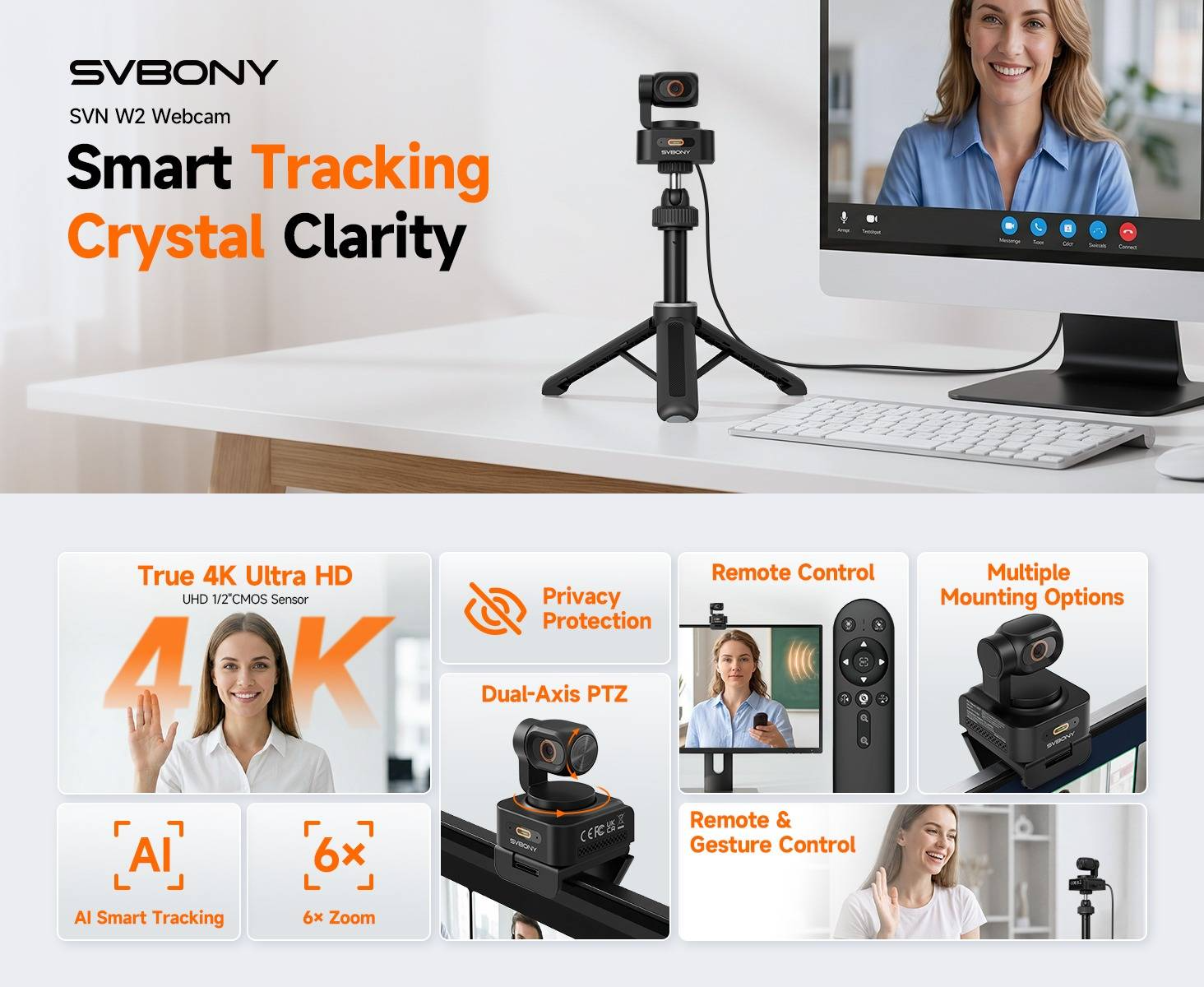
Smart Tracking, Crystal Clarity
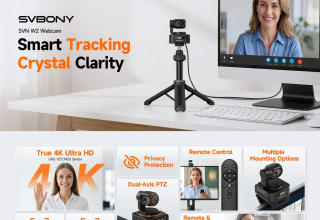
A fixed-position webcam works adequately when you’re sitting at your desk. However, if you get up to present a product, swing toward a whiteboard or cross the room, you’ll likely need to stop and readjust the camera to continue recording. The SVBONY SVN W2 was created specifically to address this issue by incorporating 4K video and AI auto-tracking along with gesture controls and a moving camera head.
The target audience includes all types of content creators (livestreamers, educators, video producers, etc.) and anyone who provides presentations online. The primary benefit to using this product is being able to maintain greater control over the frame size without continuously reaching behind you to adjust the camera each time you shift.
4K Clarity for Modern Content Creation
SVN W2 utilizes a 1/2″ CMOS image sensor which enables it to produce “true” 4K video per the product information provided. These are advertised specifications; we have not tested the camera ourselves.
The HDR function allows the camera to assist with balancing both light and dark areas in a scene. When the light source changes in the environment, automatic white balance helps to correct color representation. Both of these items are useful depending upon your particular working conditions (bright windows, changing between natural and artificial light).
If you are creating a tutorial or demonstrating a product, the objective is quite simple: your audience needs to see what you are demonstrating. In many cases, it is not necessary for the background of your demonstration to appear crisp; however, small details on components or the individual steps in your demonstration may be important enough to warrant focusing on them.
Recording at 4K and transmitting a 4K livestream are two separate activities. Based on YouTube’s encoder recommendations, selecting streaming parameters should be based on your existing bandwidth and tested prior to going live. Your camera’s maximum resolution will not provide any insight as to the quality level that your audience will ultimately see.
Lighting also plays an important role. Critical Hit’s previous coverage of streamer studio lights addresses additional elements of your production environment including the camera, microphone and other equipment.
AI Auto-Tracking That Follows the Action
Presentations can involve moving away from the desk. At times, you may need to lean across a workstation to demonstrate a specific aspect of the project or stand-up to better illustrate your points.
AI technology paired with a dual-axis gimbal in the SVN W2 are designed to track a moving subject and keep that subject in the frame. According to the manufacturer’s documentation, the camera head is capable of movement in both pan (+/-170°) and tilt (+/-90°) directions. This provides sufficient movement range to allow you to move freely about the space; however, there is limited ability to track a moving subject beyond the limits of the camera’s tracking field of view.
Additionally, landscape and portrait mode options are available allowing you to switch between horizontal or vertical framing depending on the type of content you are creating. Horizontal framing is often used for meetings and longer-form content. Portrait framing may be preferred for shorter form content destined for mobile devices. Ultimately, your selection will depend on where your completed video will be viewed.
Gesture Control for Hands-Free Operation
Stopping mid-presentation to locate a mouse or remote can disrupt the flow of your message. The SVN W2 supports hand-based gestures to facilitate tracking and zoom functionality remotely.
Gesture control can be beneficial during demonstrations since you can temporarily pause your activity to perform a supported gesture instead of walking back to your computer. As such, it would be helpful to practice using the gesture controls before recording so that you become comfortable with their location relative to your normal workflow.
In addition to gesture-based controls, a remote control is also included with the SVN W2. The remote operates zoom, mirroring/flipping, AI-related features, privacy-screen control and microphone mute. Depending on your preference, either gesture-based control or remote access can be utilized during your recording session.
6X Digital Zoom for Close-Up Demonstrations
On occasion, you will need to display very small objects such as labels, connectors or tools held in your hand. The SVN W2 includes 6x digital zoom capability enabling enlargement of those aspects of the frame without physically adjusting the webcam position.
This is yet another option for adjusting demonstrations while keeping the camera stationary. Pan and Tilt manage direction of the camera; Zoom manages size of the subject displayed within the frame. Test zoom levels in advance of your recordings for clarity of small text or fine details.
The potential advantages of utilizing these features include fewer interruptions during lessons filmed at workbenches. An essential consideration is whether or not the detail in small print or small features can be seen clearly at your selected zoom level(s).
A Simpler Setup for Everyday Recording
According to the specifications published by SVBONY, the SVN W2 is equipped for “plug-and-play” functionality on compatible Windows and macOS systems. No special installation procedures or separate drivers are required for standard usage; nor is a separate camera control application needed. The 2.1-meter USB cable included with the camera provides some flexibility over camera placement; additionally, the remote does not require a separate pairing process.
Similar to any webcam installation procedure, you will need to identify and select your new webcam as your input source in your recording software. For OBS users, the official Video Capture Source Guide provides step-by-step instructions for adding a webcam, identifying it as your chosen input device from your list of connected devices and setting supported resolutions/frame rates.
The internal dual-microphone array has been described as providing a pickup range of about 1.5 – 3 meters. This is intended to account for speakers that may be positioning themselves farther from their workstation during presentations. Room acoustics, background noise and distance from the speaker will affect the sound picked up by the microphones.
One Camera for Meetings and Creating
A creator’s day can involve several different kinds of video. A product demonstration needs a clear view of the item. A tutorial may involve moving around a workspace. A meeting usually calls for a simpler shot from the desk.
The SVBONY SVN W2 brings 4K imaging, AI auto-tracking, gesture control, remote operation and 6X digital zoom into one webcam for those situations. Its feature set is aimed at people who want more freedom to move while presenting.
How useful that is will depend on your routine. If you stay seated for every call, you may rarely need the moving camera head. If you regularly stand up to teach or demonstrate something, tracking and remote control have a more obvious role.
Product Details
Product: SVBONY SVN W2 4K Webcam
Key features: 4K video, 1/2-inch CMOS sensor, AI auto-tracking, gesture control, dual-axis gimbal, 6X digital zoom, remote control
Compatible systems: Windows and macOS
Explore the SVBONY SVN W2 on Amazon:
View the SVBONY SVN W2 on Amazon
Last Updated: November 2, 2026