Most video templates work by letting you drop your media into placeholder areas. If you have an intro that is five seconds longer than expected or if you like the countdown but dislike the confetti, you have little room to change the sequence. You either stick with what the template provided or start again from scratch in a blank editing timeline.
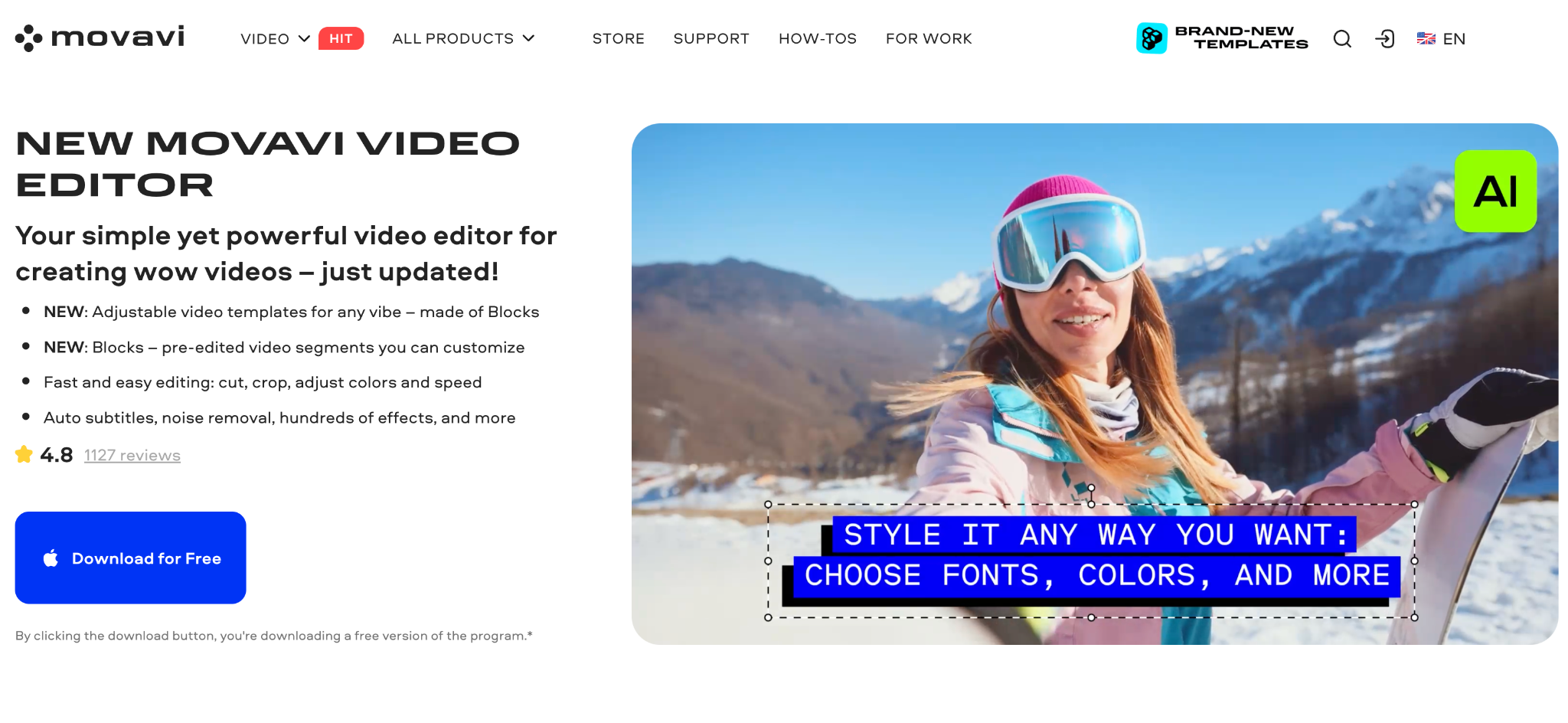
Movavi Video Editor (for Windows and macOS), a desktop editor intended for beginning users and general creators, has taken on this very issue with its 2027 version. It includes AI video denoise and auto-tracked cropping. Movavi Video Editor features a new template system called Movavi Video Templates which uses smaller pieces called Blocks that can be rearranged within each template.
What’s new in 2027
This update adds three major new features:
- Movavi Video Templates. Each template now consists of Blocks, small sections of pre-edited video. Add, remove, or reorder them without changing the other parts of the template.
- AI video denoise. A one-click tool designed to reduce low-light noise and grain, while retaining image detail.
- Auto-tracked cropping. Reframe your subject so they remain in view; even if you convert horizontal clips to vertical ones.
According to Movavi, it delivers more than 25 updates to its applications per year. Prior releases also included auto subtitles, silence removal, as well as an AI motion tracking feature. With this version, the focus was on templates.
Movavi Video Templates: building a video from Blocks
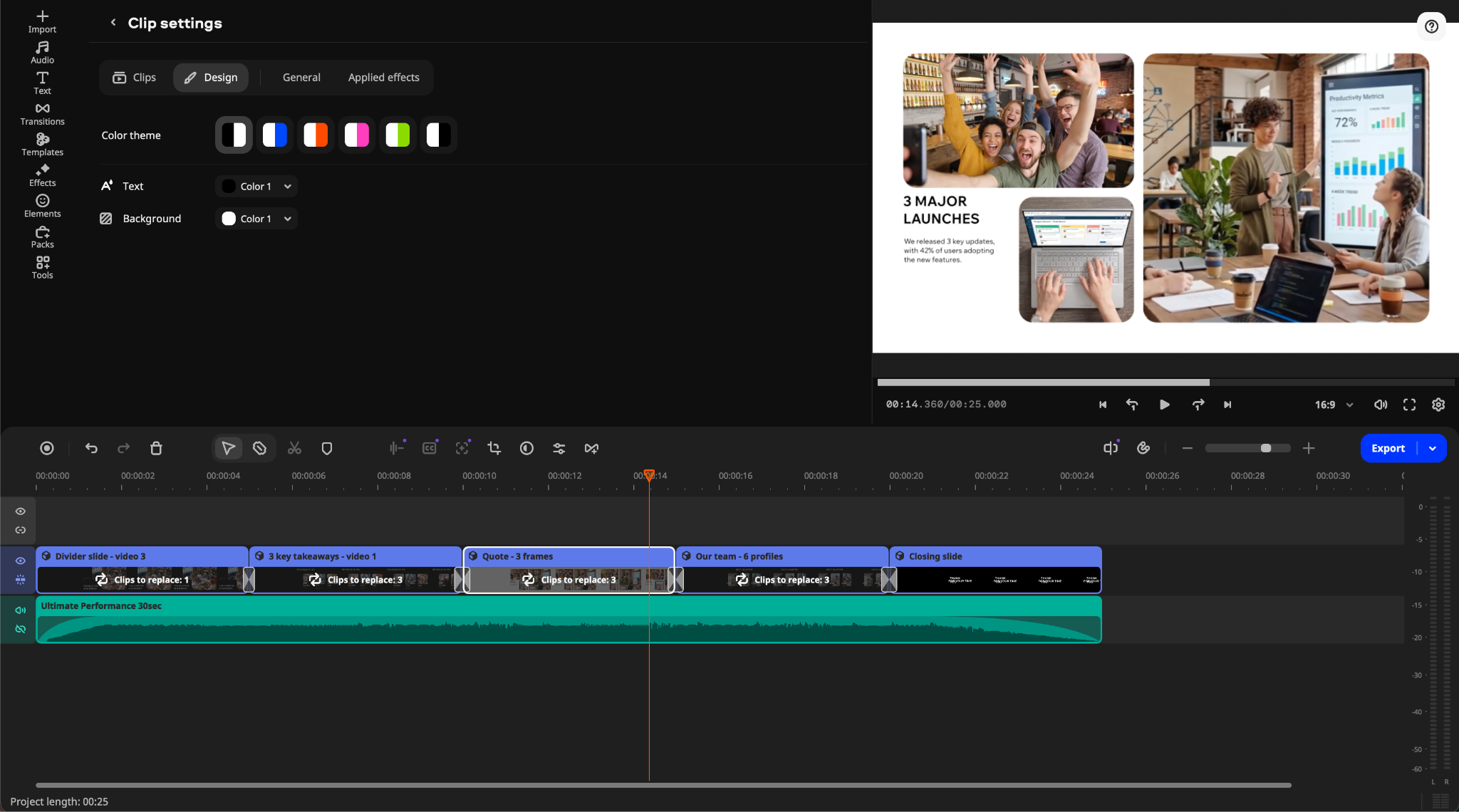
Movavi Video Templates are modular templates that include editing, music, transitions, and text. What makes these templates different is how they are assembled.
Each template is comprised of Blocks. Examples of Blocks would be an introduction, a countdown, a quick cut sequence, an animated collage, etc. Once a clip, photo, or text is added to a Block it will take care of editing for that particular part of the video. You may remove a Block if you do not like it, insert it in another area of the video, or add a new Block. The timing and music within each Block remain consistent. You can select a different color scheme for a Block, or change the font and/or color used in the text within that Block. You may also bypass templates and create a video from individual Blocks.
When creating a wedding slideshow you may begin by adding your opening shot to the intro Block, replacing the countdown with the reveal moment, and removing any collage that doesn’t fit. The pre-edited elements provide you with a basic beat. Preview the connections once you have reordered the Blocks. You can also edit manually on the standard timeline.
Beginners receive a foundation for pacing an introductory segment and for transitioning to music. Blocks can assist in providing polish to the first project while still allowing for creativity in producing your own video.
Categories include vlogging, travel, gaming, food/cooking, health/fitness, holidays/family, jobs/business, educational/learning, promotional/marketing, etc. Projects include YouTube reviews/tutorials, vacation slide shows, birthday/wedding videos, promotional videos/video resumes/portfolios/movie-style credits.
Several templates are provided at no extra cost with the full version of Movavi Video Editor. This allows users to understand how Blocks function. The complete, regularly updated library requires a Movavi Templates subscription. The included templates use the same system; the subscription provides more to choose from.
One-click AI tools, old and new
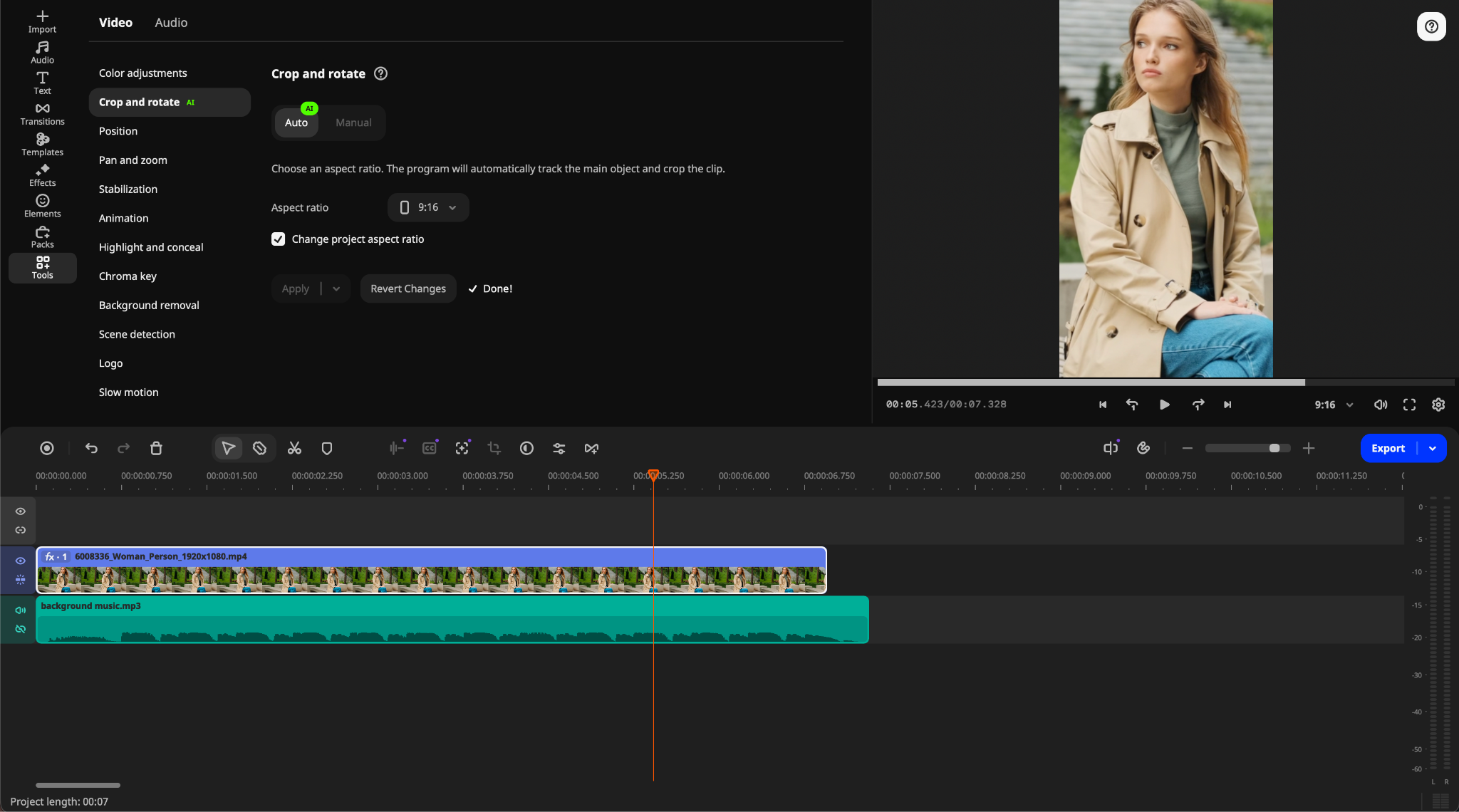
Movavi’s AI capabilities help users accomplish repetitive editing tasks. The full version includes the toolkit without additional per-use credits. Availability varies with your license and software version. Certain tools also require an internet connection.
New: AI video denoise. Movavi explains this new feature as a method of reducing grain and low-light artifacts while maintaining faces, textures, and edges. It is intended for nighttime photography/video recordings, low light interior footage, old cell phone video, and archived video. Results vary with the source material, so review fine detail after applying the tool.
New: auto-tracked cropping. This feature tracks movement of a subject within a recorded scene and adjusts the frame accordingly. It converts horizontal footage into vertical videos for Shorts, Reels, and TikTok. Preview the result. If the subject is incorrectly identified, adjust the crop manually.
All previously available AI features remain in the current version:
- Auto subtitles convert spoken language into captions in more than 100 languages, with 60+ caption designs and active word highlighting. Proofread names and timing before exporting.
- Silence removal identifies and removes pauses automatically. Users can adjust pause lengths and volume thresholds.
- AI audio noise removal targets traffic, wind, and steady hums surrounding a voice recording. Its effectiveness depends on the original audio.
- AI background removal separates a person from the background without a green screen. Double-check difficult edges.
- AI motion tracking allows users to attach text, images, or graphics to objects that move throughout a recorded scene.
The rest of the editing toolkit
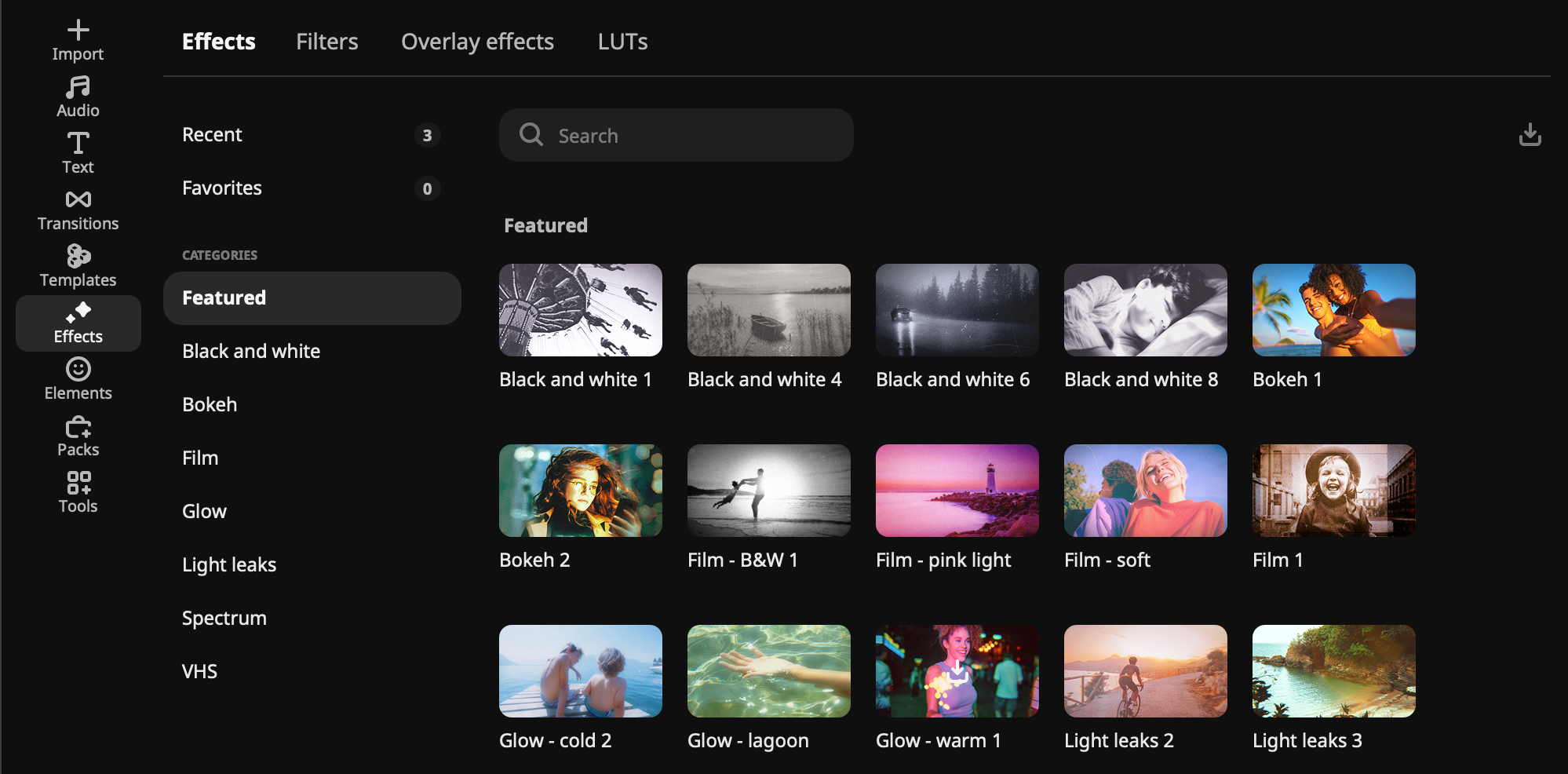
Templates and AI tools receive most of the attention, but they reside atop a complete editor. The interface is designed for people who have never edited before: A Media Library, Preview Window, Timeline and Tool Panel along with integrated hints that help guide users in what to do next. Drag effects and presets onto clips to apply them. Hover over a file, transition, or effect to preview it first.
A “Blade” tool provides frame-precise cutting capabilities anywhere along the timeline and there is also pre-timeline trimming functionality allowing users to take a small section from a long recording prior to adding it to the project. For time-lapses, speed can be increased up to 100x. Color controls include presets and manual tone, contrast, and saturation adjustments. Other included features include stabilization, chroma key (green screen), pan and zoom, animation and a highlight/conceal tool which allows users to blur certain areas of their frame or draw focus to specific areas.
Hundreds of built-in elements including drag-and-drop transitions, title templates, color filters, sticker graphics, overlay images, music and sound effects are available for inclusion into projects. Movavi Effects is an optional subscription based service providing access to over 10,000 additional effects and 1,500+ music tracks. Users may view examples of additional items being used on their own video content and test watermarked export versions of their projects prior to purchasing them. Check the music license for your intended use.
Movavi Video Editor also provides audio controls beyond AI cleanup. Audio processing options include an equalizer, compressor, noise gate, reverb, automatic beat detection so that users can cut video footage to the rhythm of a song, and one-click Sound autocorrect presets for voice recorded segments.
Completed projects can be exported in MP4, MOV, AVI, MKV, FLV, and WMV. Users may also export a project as an audio-only file in MP3, WAV, AAC, WMA, OGG, or FLAC format. Animated GIF export is also available. Export presets cover phones, tablets, consoles, and TVs. Completed projects may also be automatically uploaded to YouTube, TikTok, Vimeo, or Google Drive. Imports support the same video and audio formats plus JPEG, PNG, HEIC, BMP and static GIF image formats. The program supports Windows 10 and 11, macOS 12.0 or later, and native ARM processors. The minimum stated memory requirement is 4 GB of RAM.
Movavi Ideas: free weekly tutorials
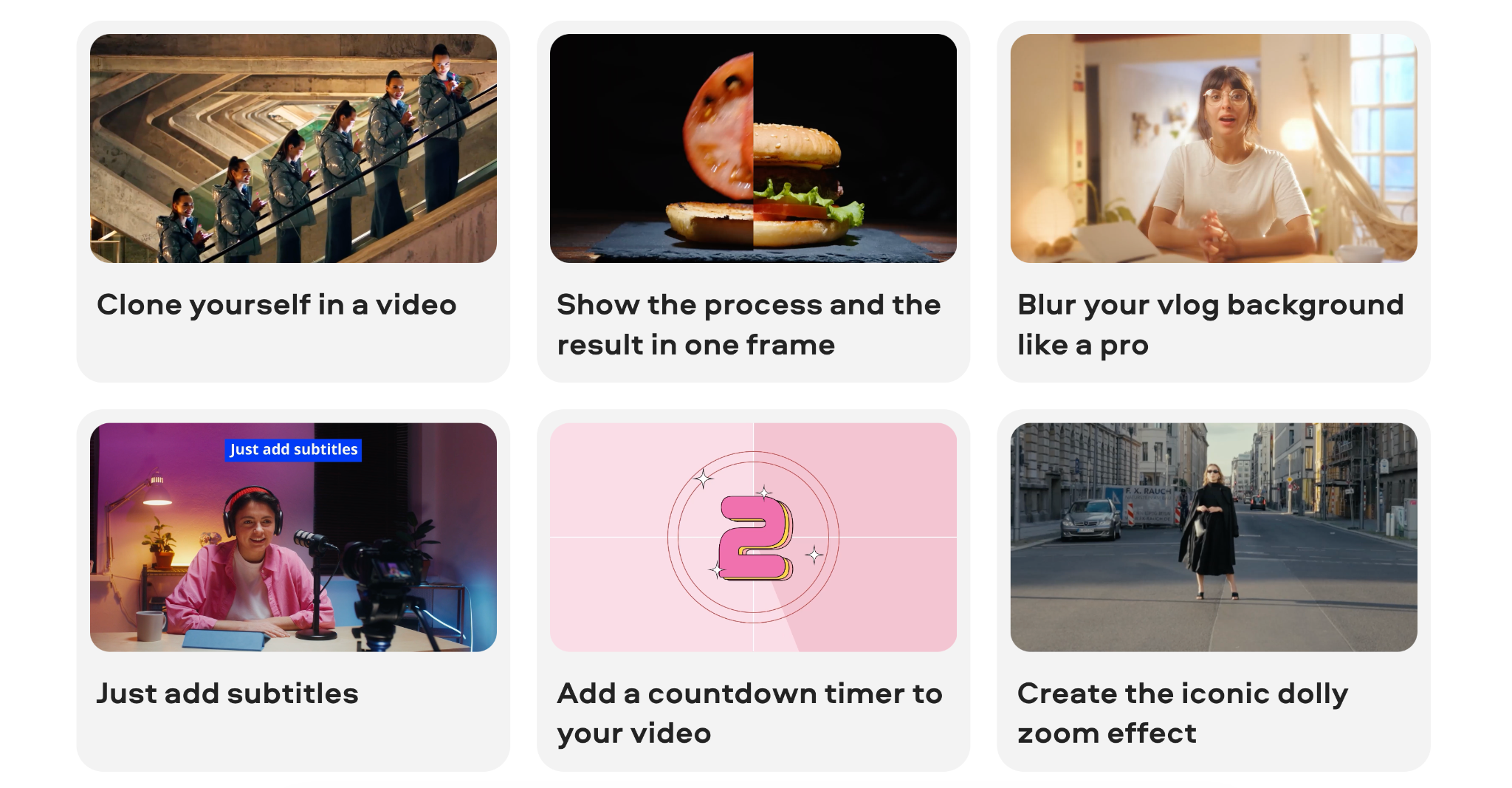
Movavi Ideas is a free library of short editing tutorials that show you a project’s final result, followed by step-by-step directions on how to create the same. Many are short enough to watch between edits. New ideas are added regularly.
The ideas are shown through many different types of projects including vlog-style videos, vertically shot videos, business-related content, vacation/travel related content, holiday related content, family related videos, meme style videos, etc. Examples include jump cut transitions, split screen transitions, countdown timer transitions, animated reaction shots, intro animations. They give beginners a starting point and experienced creators ideas for their next project.
Free, Lite, and full versions
Movavi offers several pricing options, with extra libraries sold separately:
- Free version. Download it from Movavi’s official website to test the main editing tools and automated features. Export limitations depend on the build. These could include an watermark, a maximum length of 60 seconds for exported videos or half-length for exported audio, and limited access to advanced editing features. Review the current download limits before a long project.
- Lite. This is a smaller version of the full product that is designed around the core editing functions (auto subtitling, auto cropping, silence removal) along with built-in effect capabilities. Some advanced features are still missing and some exported products will display a small watermark. Review the current Lite checkout details for the terms.
- Full version. All of Movavi’s features and AI tools; no watermark or standard export-length limit. Hundreds of effects, plus multiple templates are provided. The software may be purchased either by month or year.
- Movavi Effects and Movavi Templates. These are optional subscription services which add the entire library of available effects and templates to your Movavi package if you need them.
Movavi often has periodic discounts and promotions. Visit its official website for current pricing and plan details before purchasing.
What we liked
- Templates made of Blocks that you can restyle, reorder, add, or remove
- Pre-edited pacing and transitions that give beginners somewhere to start
- Simple AI tools for denoise, reframing, and repetitive work, without separate per-use credit purchases in the full version
- Hundreds of built-in effects, a music library, and useful audio controls
- Built-in hints, hover previews, and drag-and-drop editing
- Free tutorials in Movavi Ideas
- Several plans, including a free version
Limitations to consider
- Less depth of control than a professional editor
- A preset panel layout with less workspace flexibility than some professional editors
- Desktop editing rather than a browser-based shared project workspace
- Separate subscriptions needed for the complete effects and template libraries
Verdict
The Blocks system is what is most appealing about this version of Movavi. The Blocks make it easy for you to create new template designs by allowing you to easily add to or edit the pre-built elements (music, transitions) of each Block. Even though you can build a completely new design from scratch using these templates, there will always be some additional effort involved when creating a video by having to find suitable content to use as footage. AI video denoise, auto-tracked cropping, subtitles, silence removal, audio cleanup, and background tools also reduce repetitive tasks.
Movavi Video Editor looks suited to beginners and everyday creators making vlogs, YouTube videos, business promos, tutorials, or family videos. The accessible workflow and included material are its appeal. If you need advanced professional controls or a freely rearrangeable interface, consider those limits before subscribing. Try it with your own footage and check which extra libraries the plan includes.
Last Updated: October 6, 2026